


PixelMe Frequently Asked Questions
Why should I use Smart Attribution?
We found, through many conversations with marketers, that one issue which was consistently brought up was having to spend valuable time gathering all their ad conversion data from all their platforms. Even with all that time spent on analysing the data, they don’t always know how to attribute their conversions correctly. Since the data isn’t standardised across platforms, it’s difficult to get an accurate picture of their attribution. Also, manually filling in spreadsheets just takes too much time and effort 😉.
So we came up with Smart Attribution. Smart Attribution solves these issues by giving you all your marketing data in one dashboard. You can see, at a glance, which of your ads or organic campaigns are bringing you the most conversions, which ones have the lowest CAC, and where to invest your marketing budget.
How to Add an Amazon Storefront
Why should I use UTM tracking?
Tracking UTMs is one of the easiest ways to get a quick overview of which of your campaigns are performing the best. Since it lets you group links with the same parameters together, you can easily analyse your marketing efforts by campaign.
Not a PixelMe user yet? 👉Try PixelMe for free, the URL shortener for savvy marketers! Turn every link you share into perfectly targeted ads. 🚀
How do I retarget people who clicked on my link?
We wrote a full blog post with the detailed instructions on medium. Please visit this link and learn how to fully retarget your audience on Facebook.
Not a PixelMe user yet? 👉Try PixelMe for free, the URL shortener for savvy marketers! Turn every link you share into perfectly targeted ads. 🚀
How do I find my Pixel ID?
Finding your Pixel ID is different for each platform. We have set up the following guides to help you:
Facebook
Twitter
LinkedIn
Google Analytics
Google Adwords
Not a PixelMe user yet? 👉Try PixelMe for free, the URL shortener for savvy marketers! Turn every link you share into perfectly targeted ads. 🚀
How do I find and add my Linkedin ads pixel ID?
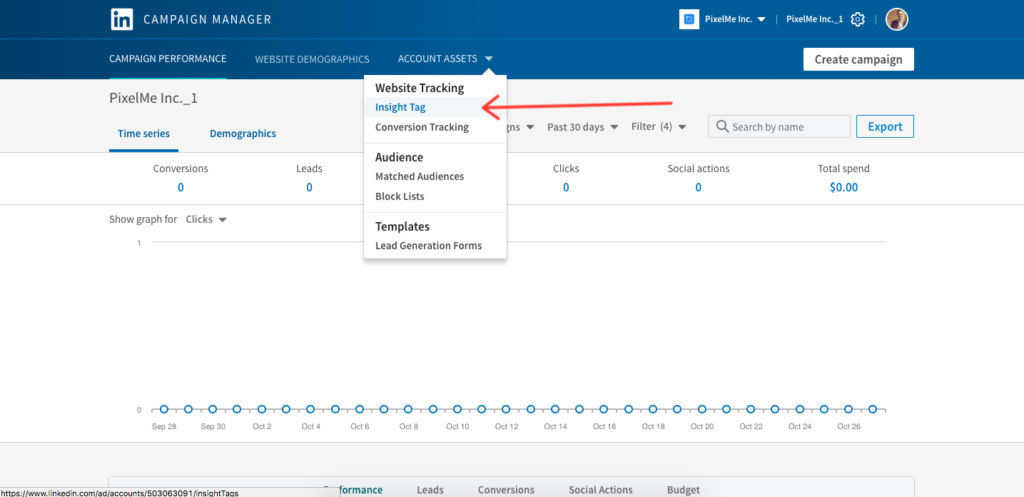
- Sign in to Linkedin Ads Manager
- Click on the ad account you want to create ads for.
- Click the Account Assets tab and Insight Tag
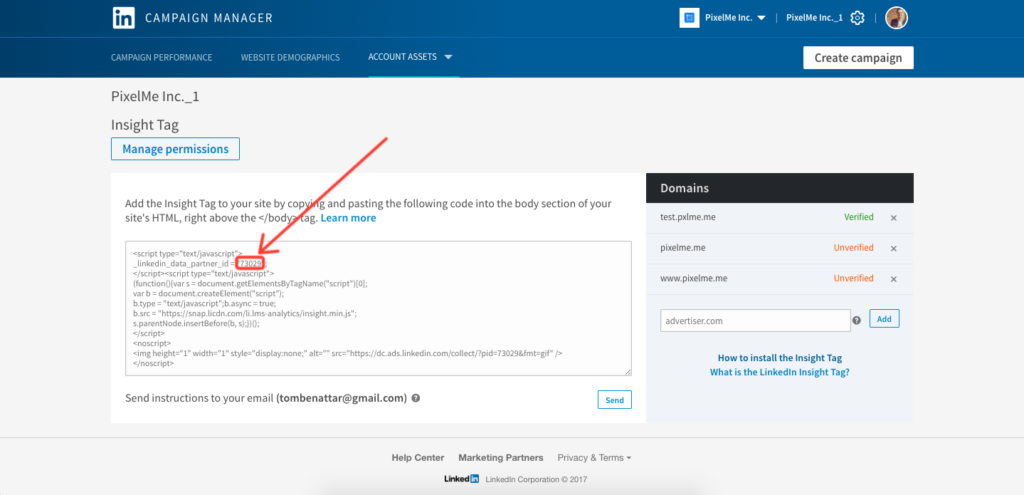
3. Copy your unique linkedin_data_partner_id
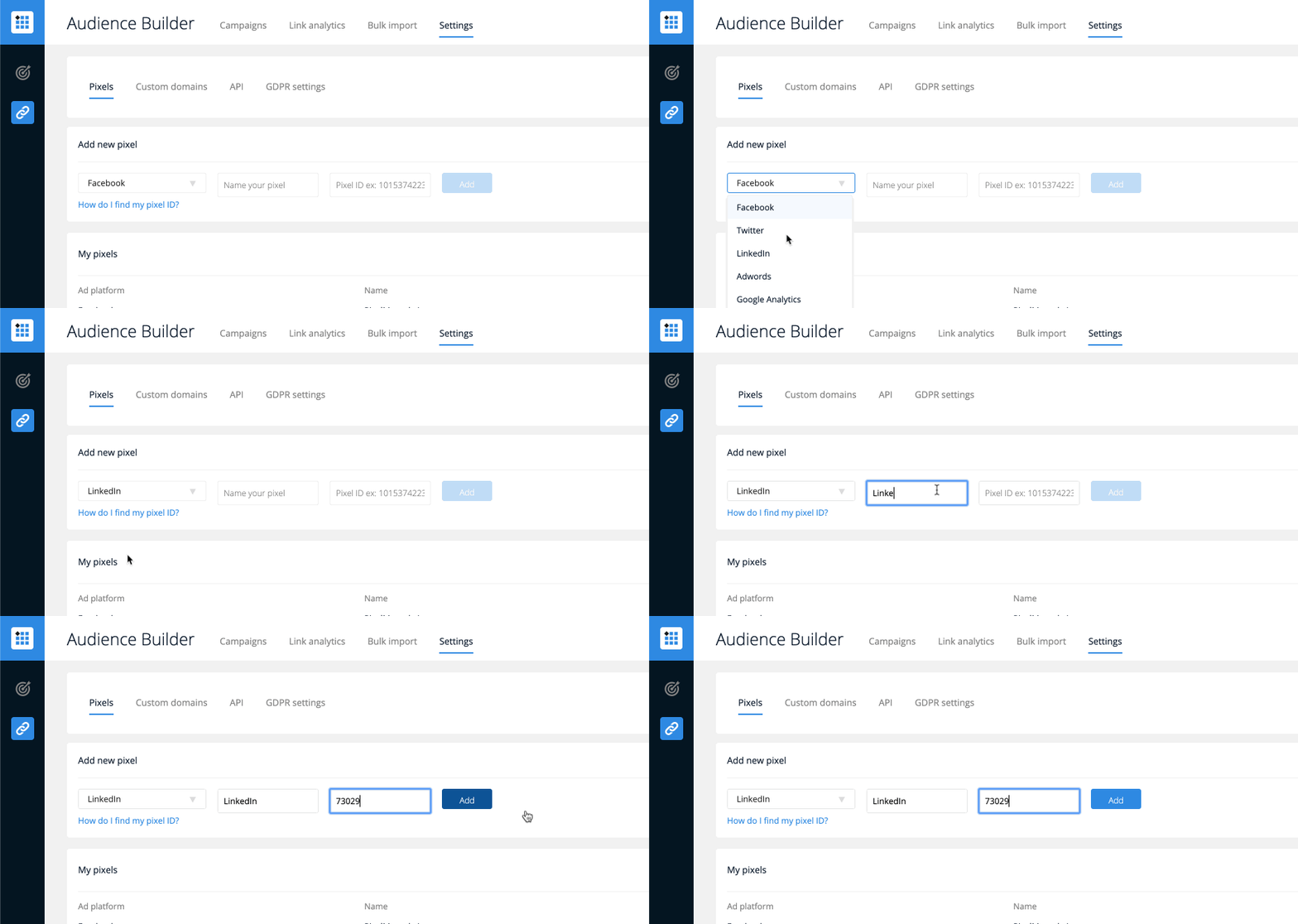
4. Go to your PixelMe dashboard. Under the Audience Builder ‘Settings’ tab, you can now add your LinkedIn pixel. And you’re done! 🎈
Not a PixelMe user yet? 👉Try PixelMe for free, the URL shortener for savvy marketers! Turn every link you share into perfectly targeted ads. 🚀
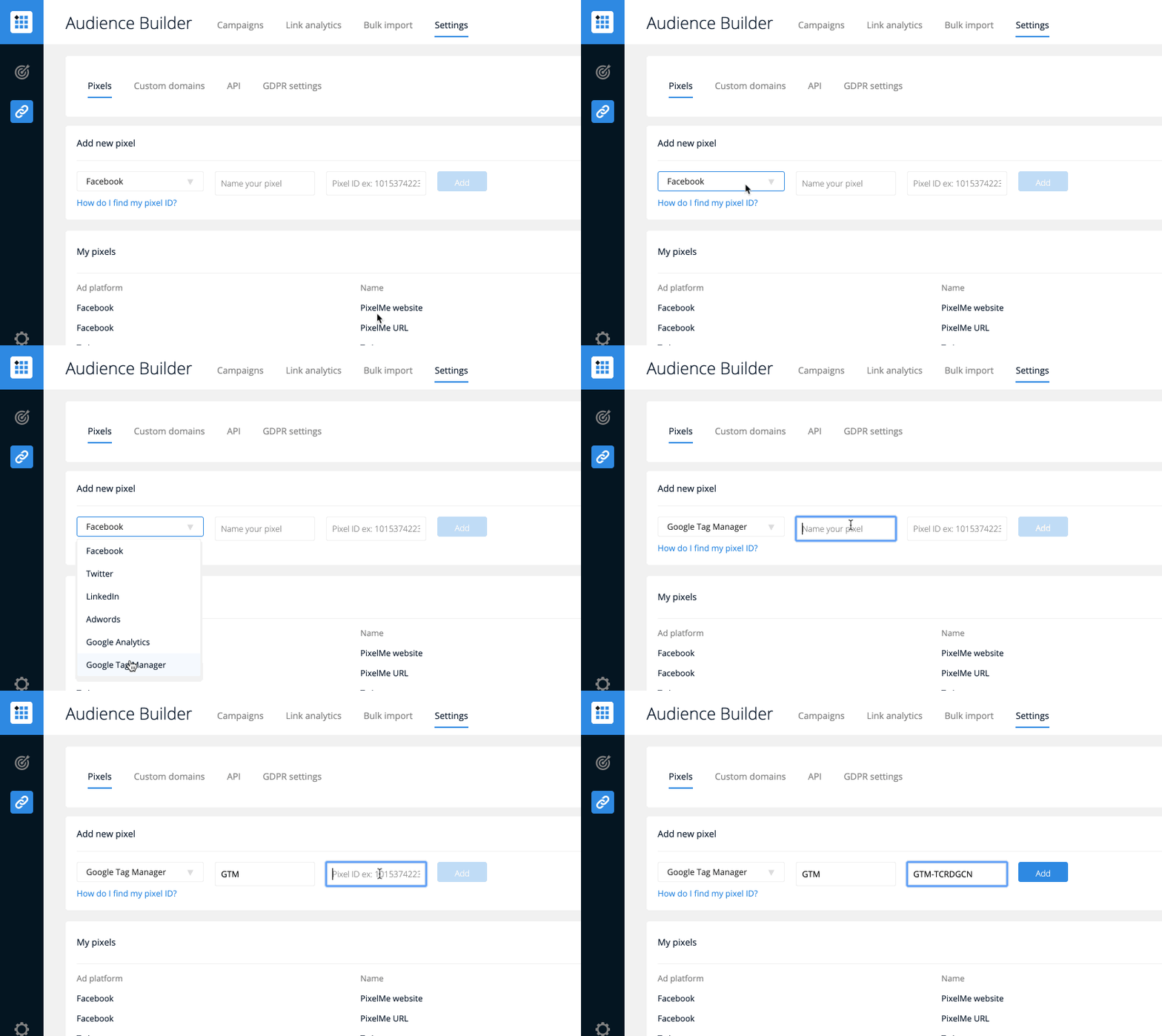
How do I find and add my Google Tag Manager ID?
- To find the container ID, simply sign-in to Google Tag Manager.
- You should be shown a list of accounts (or just one, if you only have one account). Find the container ID of the account you’d like to use and copy-paste it.
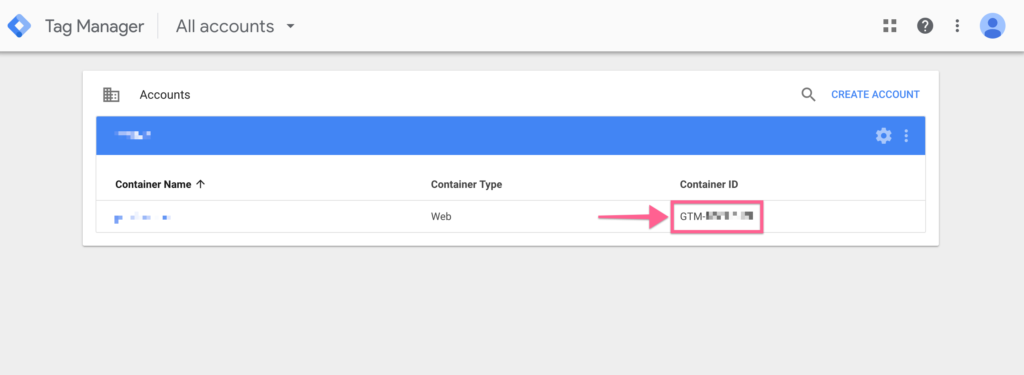
Your ID must contains the GTM prefix.
2. Go to your PixelMe dashboard. Under the Audience Builder ‘Settings’ tab, you can add your Google Tag Manager pixel.
Not a PixelMe user yet? 👉Try PixelMe for free, the URL shortener for savvy marketers! Turn every link you share into perfectly targeted ads. 🚀
How do I find and add my Google Analytics ID?
To find the tracking ID:
- Sign in to your Analytics account.
- Click Admin.
- Select an account from the menu in the ACCOUNT column.
- Select a property from the menu in the PROPERTY column.
- Under PROPERTY, click Tracking Info > Tracking Code. Your tracking ID is displayed at the top of the page.
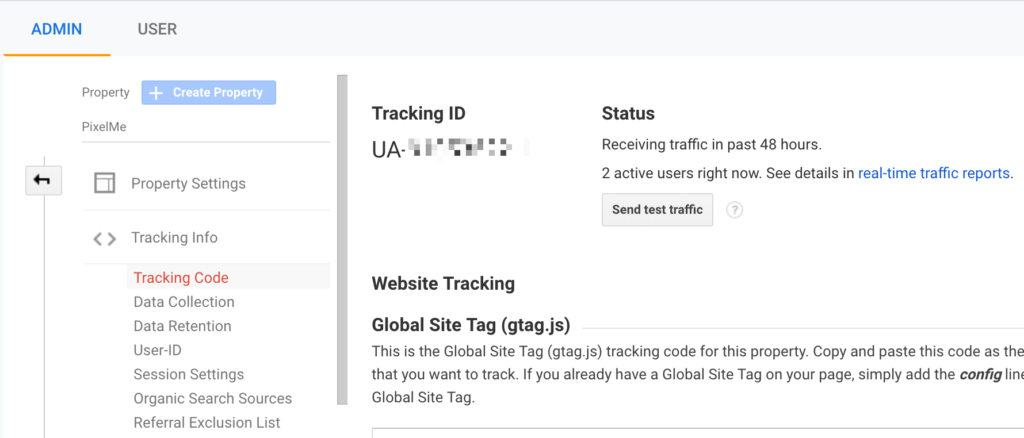
6. Go to your PixelMe dashboard. Under the Audience Builder ‘Settings’ tab, you can now add your Google Analytics pixel, which should look like: UA-000000-0
Not a PixelMe user yet? 👉Try PixelMe for free, the URL shortener for savvy marketers! Turn every link you share into perfectly targeted ads. 🚀
How do I find and add my Google Adwords pixel ID?
https://www.loom.com/share/79bf388150e3487aa434fa2a9851855b?sid=27735b35-ca1d-400b-acca-b7ee81c1728b
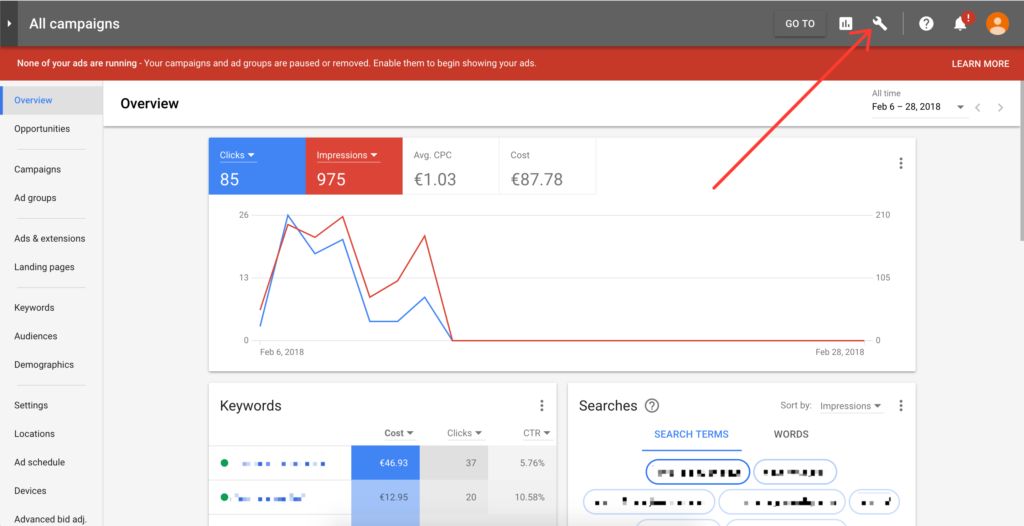
1. Click the settings in your Google Adwords account.
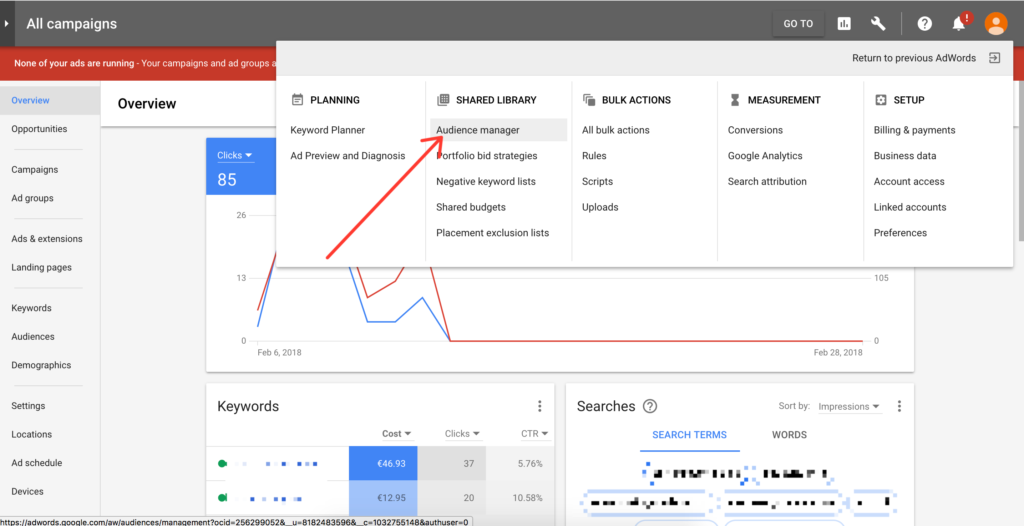
2. Click on Audience manager.
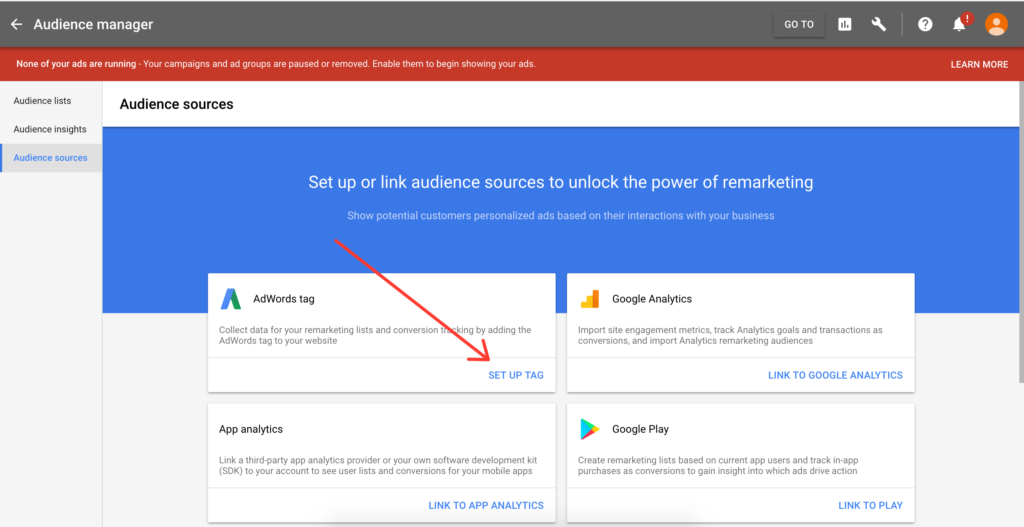
3. Set up an audience source OR Audience sources on the left.
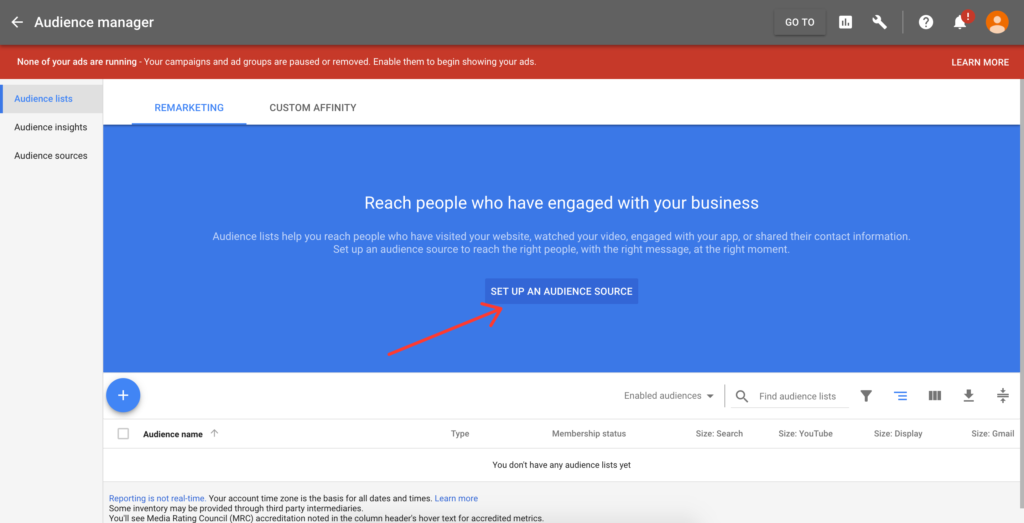
4. Set up TAG
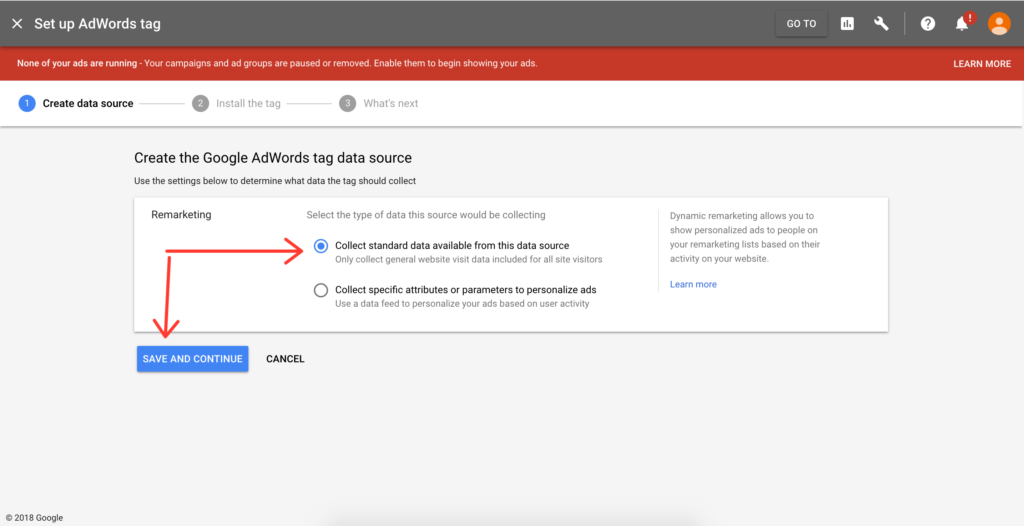
5. Save and continue
6. Copy the google_conversion ID
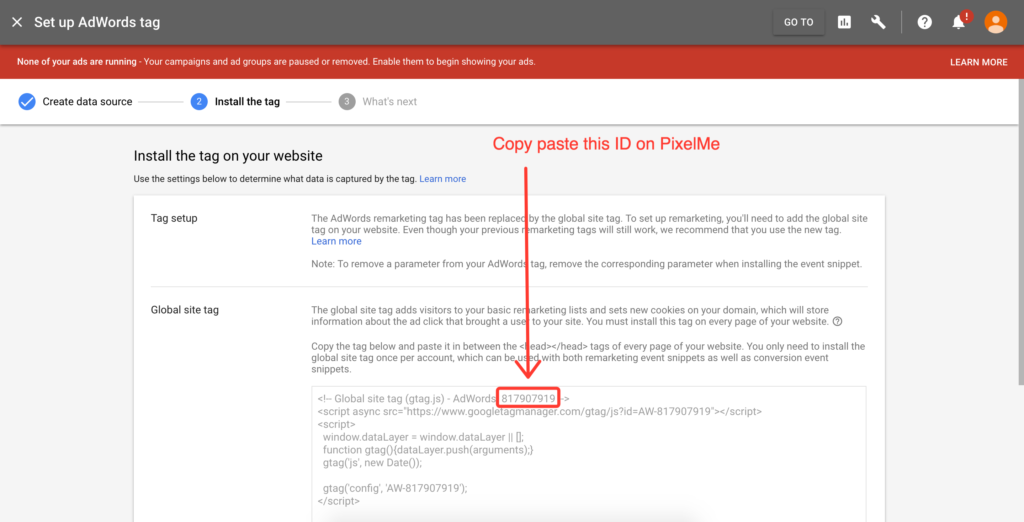
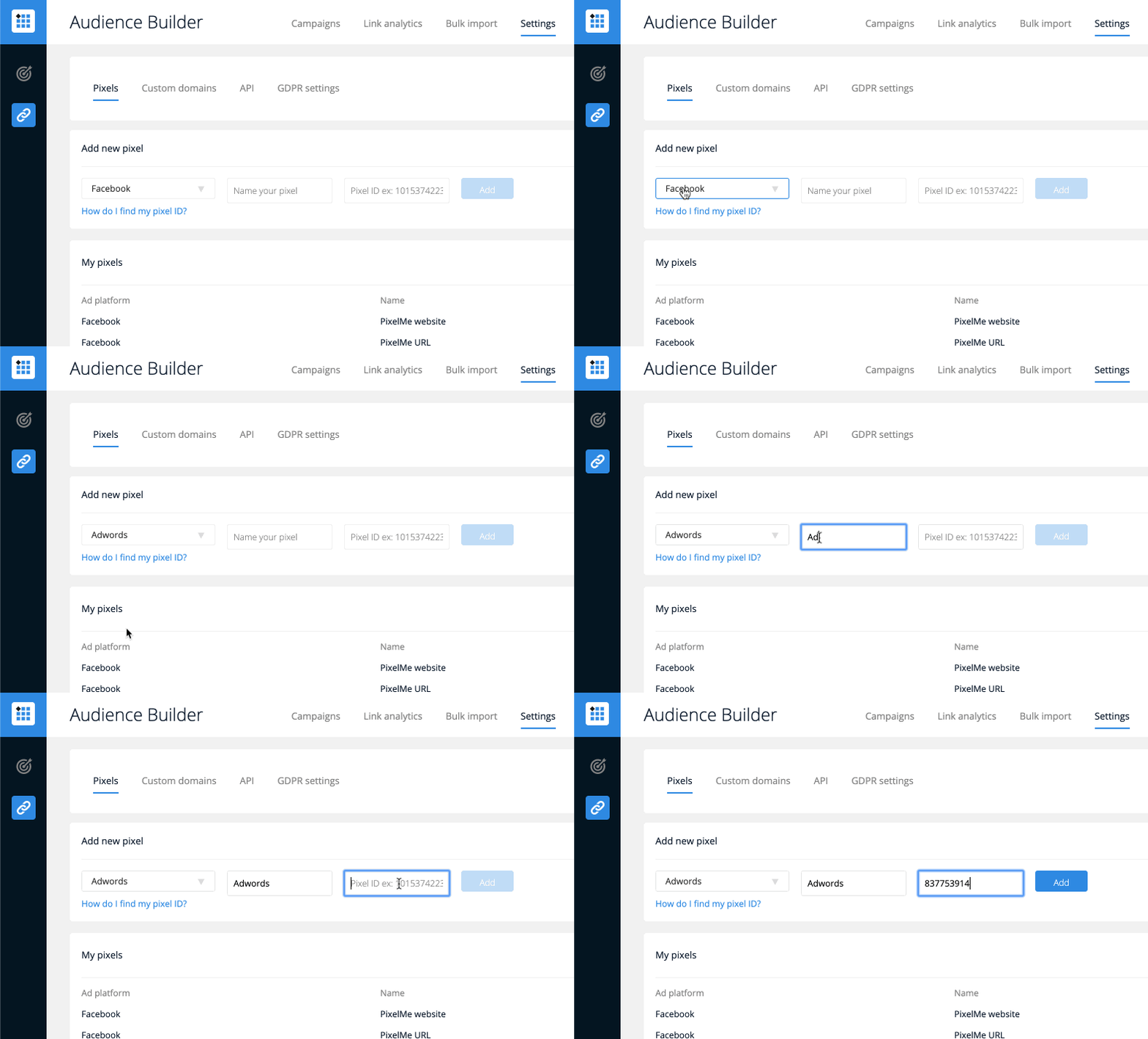
7. Go to your PixelMe dashboard, and navigate to the Audience Builder. Under the ‘Settings’ tab, you can add your Google Adwords pixel! ✨
Not a PixelMe user yet? 👉Try PixelMe for free, the URL shortener for savvy marketers! Turn every link you share into perfectly targeted ads. 🚀
How do I find and add my Facebook pixel ID?
https://www.loom.com/share/6f2671f261d84e13b1ce3e46d22c1089?sid=9beb4b84-ba39-42cf-9df3-93746fe4d83c
First, you need to make sure you have created a Facebook pixel. Follow these instructions if you haven’t, then come back to this guide.
- Sign in to Facebook Ads and if you’re not automatically redirected to the Events manager, navigate to there.
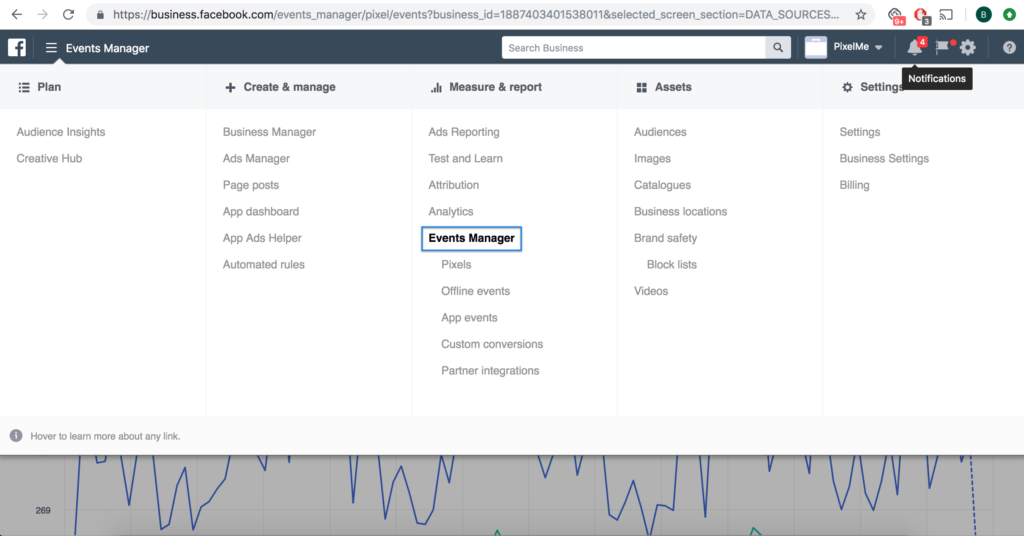
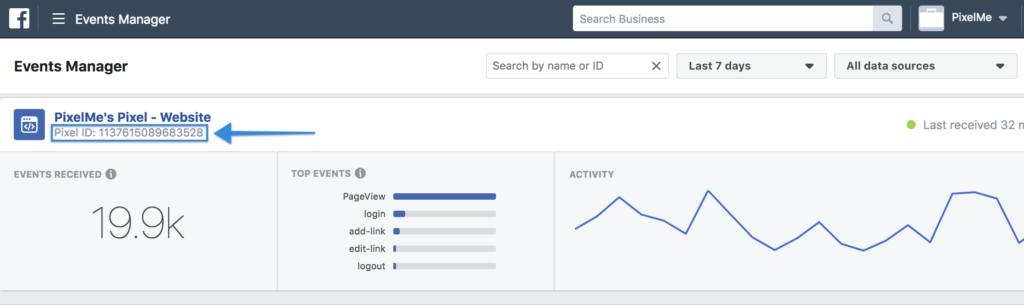
2. Copy the Pixel ID of the pixel you’d like to use.
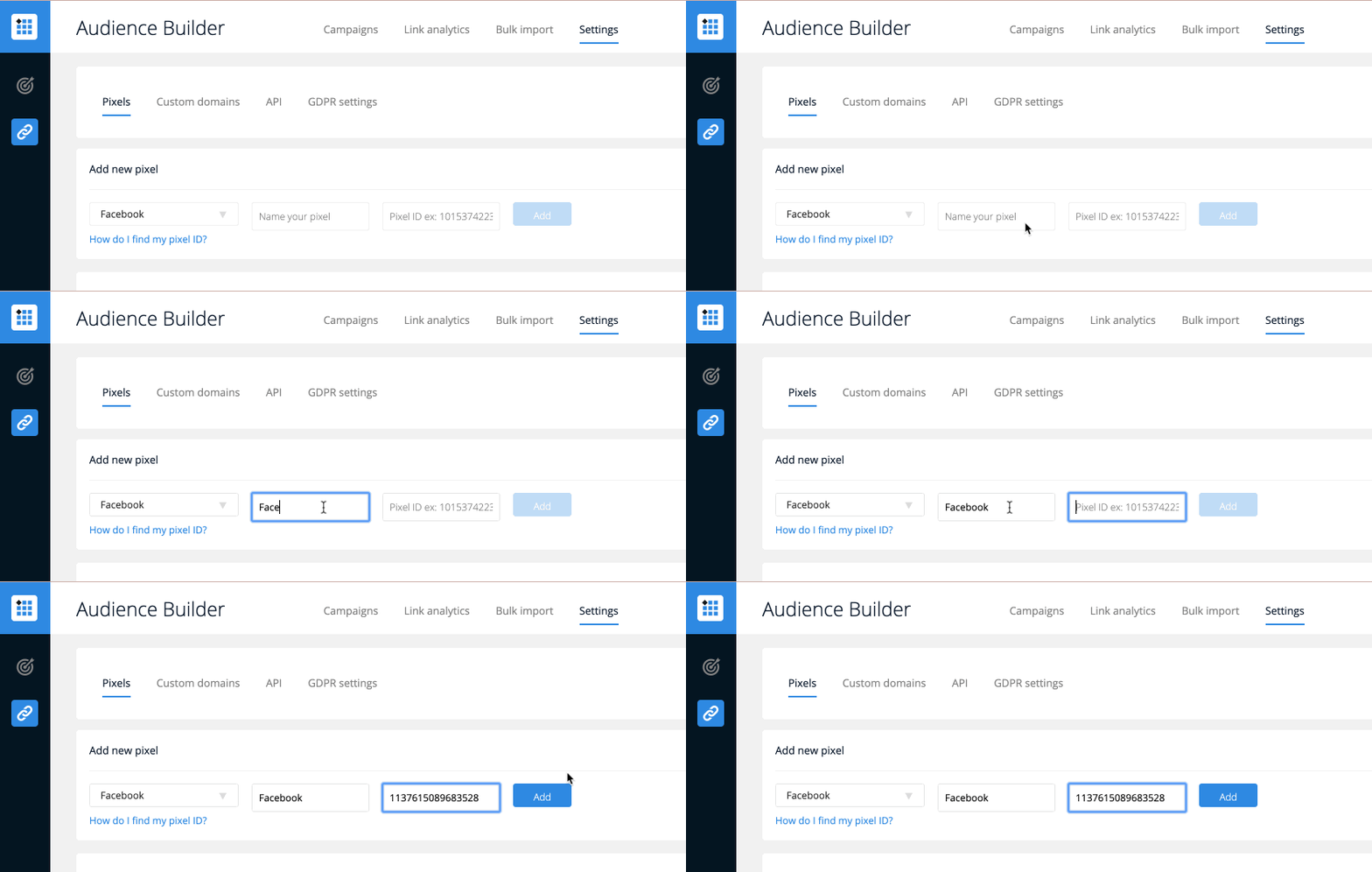
3. Take this ID and paste it to PixelMe under the Audience Builder ‘Settings’ tab! Make sure you give it a name that will help you identify it later.
Not a PixelMe user yet? 👉 Try PixelMe for free, the URL shortener for savvy marketers! Turn every link you share into perfectly targeted ads. 🚀
How do I edit a retargeting link?
You can edit a link by hovering over the link in your dashboard, and pressing the following button which appears on the hover menu on the right hand side:
https://www.loom.com/share/219005c4114047c0b41b5aba9017df93?sid=99197070-5886-4910-b171-574e7b0aaf0e
(Please note: This video was created before our dashboard split. Everything mentioned here can now be found in the Audience Builder section of your dashboard)
How do I create a new Pixel?
Setting up a new tracking pixel is different for each platform. Please find the platform you’d like to create your pixel on below and follow the instructions in the link.
For Facebook, you can find out more here.
For Twitter, you can find out more here.
For Google Analytics, you can find out more here.
Not a PixelMe user yet? 👉 Try PixelMe for free, the URL shortener for savvy marketers! Turn every link you share into perfect targeted ads. 🚀
How do I create a custom audience for my ads?
To find out more about creating custom audiences to use with ads with PixelMe, you can visit our collection about the subject.
Not a PixelMe user yet? 👉 Try PixelMe for free, the URL shortener for savvy marketers! Turn every link you share into perfect targeted ads. 🚀
How do I create a PixelMe retargeting link?
After adding at least one retargeting Pixel into your PixelMe account, visit your Audience Builder dashboard.
In the top right corner, select the ‘Create a redirect’ button. Add your destination URL, edit your UTM settings as required, and don’t forget to add it to a folder to make it easier to find later. Now, select the pixel(s) you’d like to have in your link. If you have a custom domain set up, you can select that as well.
You’re ready to ‘Save your Link’ and use your first PixelMe shortened link! 💥
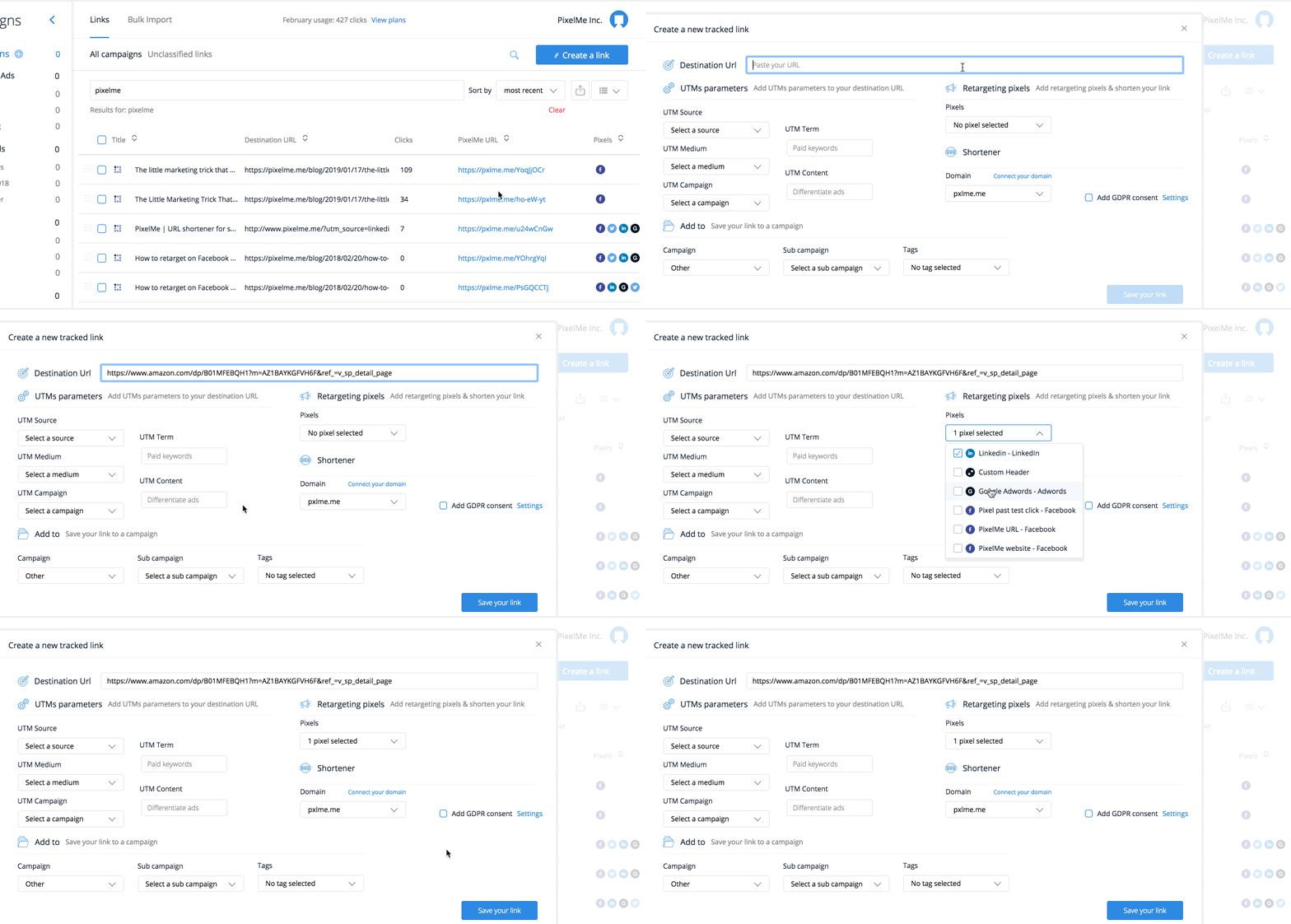
Alternatively, you can watch the following video tutorial (note: this video was created before we added Smart Attribution. All the following features are in the Audience Builder section now):
https://www.loom.com/share/3dc3b1eb52b34fb983c790efdcd4f496?sid=238f074c-b86f-4242-aa2a-257dadfed985
Not a PixelMe user yet? 👉 Try PixelMe for free, the URL shortener for savvy marketers! Turn every link you share into perfect targeted ads. 🚀
How do I change or reset my password?
To change your password, head to your Account settings on the left-hand side. If you’ve forgotten your password, please follow this link.
Not a PixelMe user yet? 👉Try PixelMe for free, the URL shortener for savvy marketers! Turn every link you share into perfectly targeted ads. 🚀
How do I cancel my plan or delete my account?
You can cancel your plan straight from the billing tab on your dashboard!
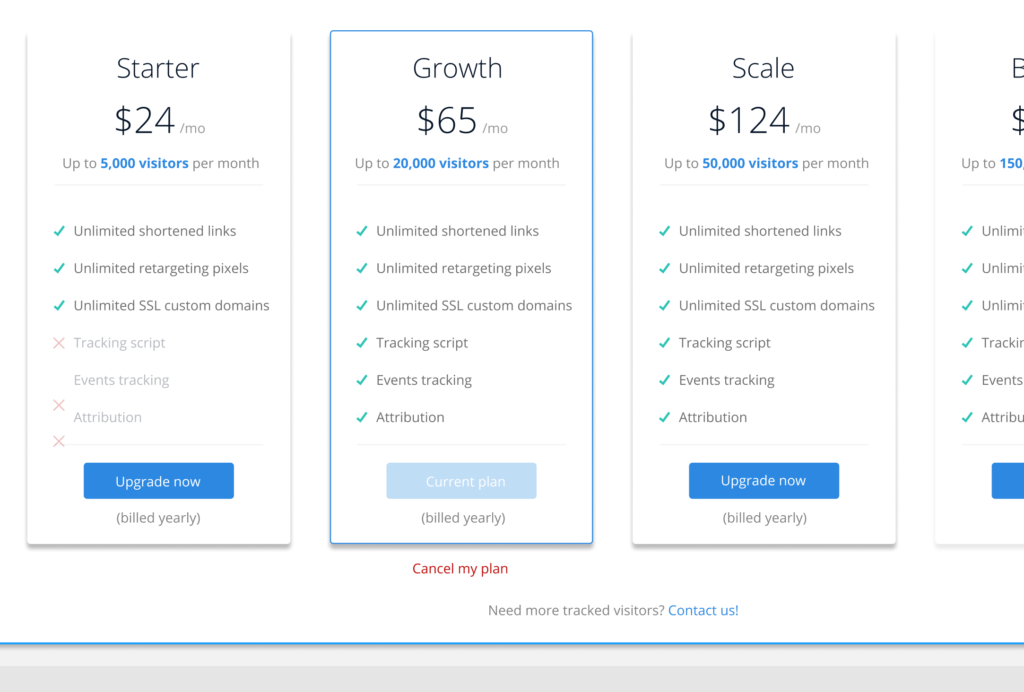
If you would like to delete your account and all your data, please let us know and we’ll manually make it happen 😉.
Not a PixelMe user yet? 👉Try PixelMe for free, the URL shortener for savvy marketers! Turn every link you share into perfectly targeted ads. 🚀
How do I add my own branded URL?
Go to the ‘Settings’ tab on your PixelMe account, then click the ‘Custom Domain’ tab.
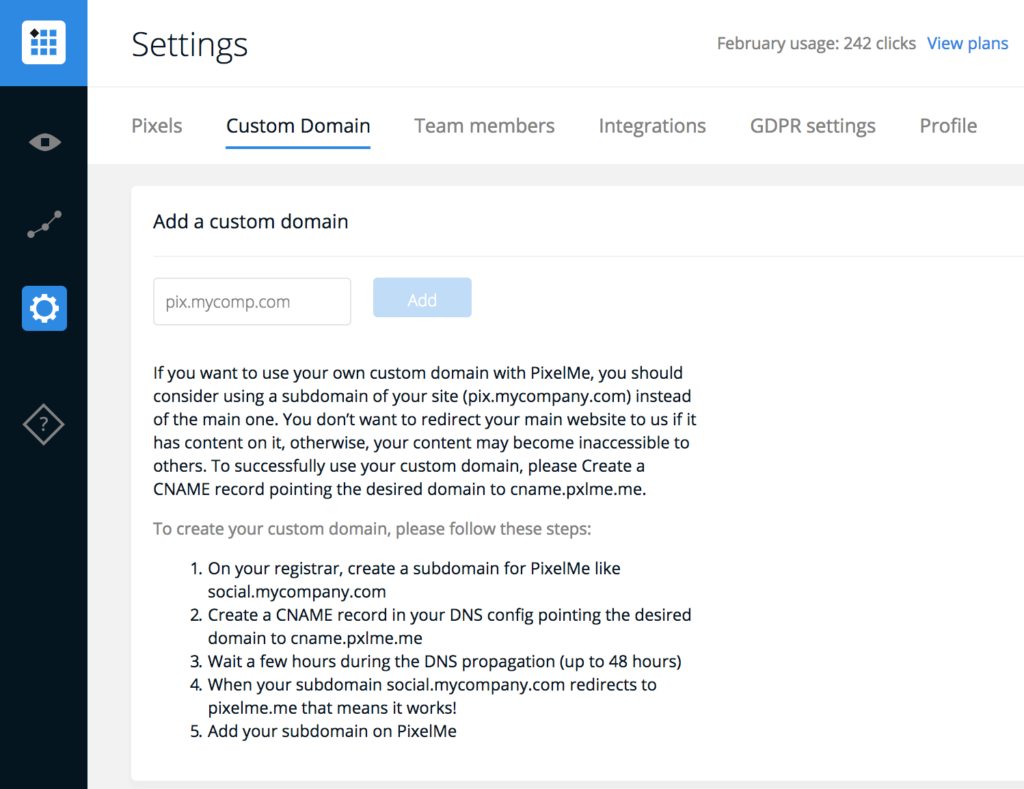
Then, redirect your shortlink DNS to our server using these two solutions: Create a CNAME record pointing the desired domain to cname.pxlme.me OR Create an A RECORD record the desired domain to 51.15.139.10. To find out more information about creating a CNAME record on your domain, visit our collection here.
Be careful: in order to fully work, the redirect can take anywhere from 24 to 48 hours. When the redirect is pointing to pixelme.me, add your branded domain in your PixelMe ‘Settings’ tab under ‘Custom domain’. Now, you’re ready to shorten your links with you own domain! 💥
Not a PixelMe user yet? 👉 Try PixelMe for free, the URL shortener for savvy marketers! Turn every link you share into perfect targeted ads. 🚀
How do I add a pixel to the PixelMe dashboard?
You can add your retargeting Pixels ID in the settings tab of your PixelMe account. Select the platform, choose a name so you can select it easily later and copy paste your Pixel ID in the dedicated text field.
Find out more in our collection on this topic here.
Not a PixelMe user yet? 👉Try PixelMe for free, the URL shortener for savvy marketers! Turn every link you share into perfectly targeted ads. 🚀
How can I use a PixelMe link in a Twitter ad?
First, you’ll need to create the shortened link you want to use in your ad. Don’t forget to include any retargeting pixels you want to use.
There are a few different options for creating Twitter ads. You can either create Promoted-only tweets, which won’t show up in your timeline but will be promoted, or you can promote a Tweet you already wrote. You also have the option to create a ‘Card’, which will show up underneath your tweet as a clickable image, or you can just Tweet normally.
For the regular option:
Head over to your Twitter ads account, and press ‘Creatives → Tweets’.
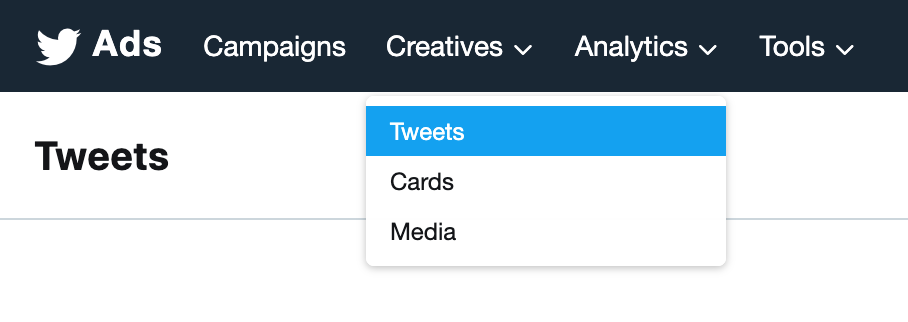
Press ‘New Tweet’ in the upper right hand corner. This will open up a Tweet creation module, in which you can create a new Tweet with any content you’d like. The important thing for this Tweet is that you use the PixelMe URL you just created! For example:
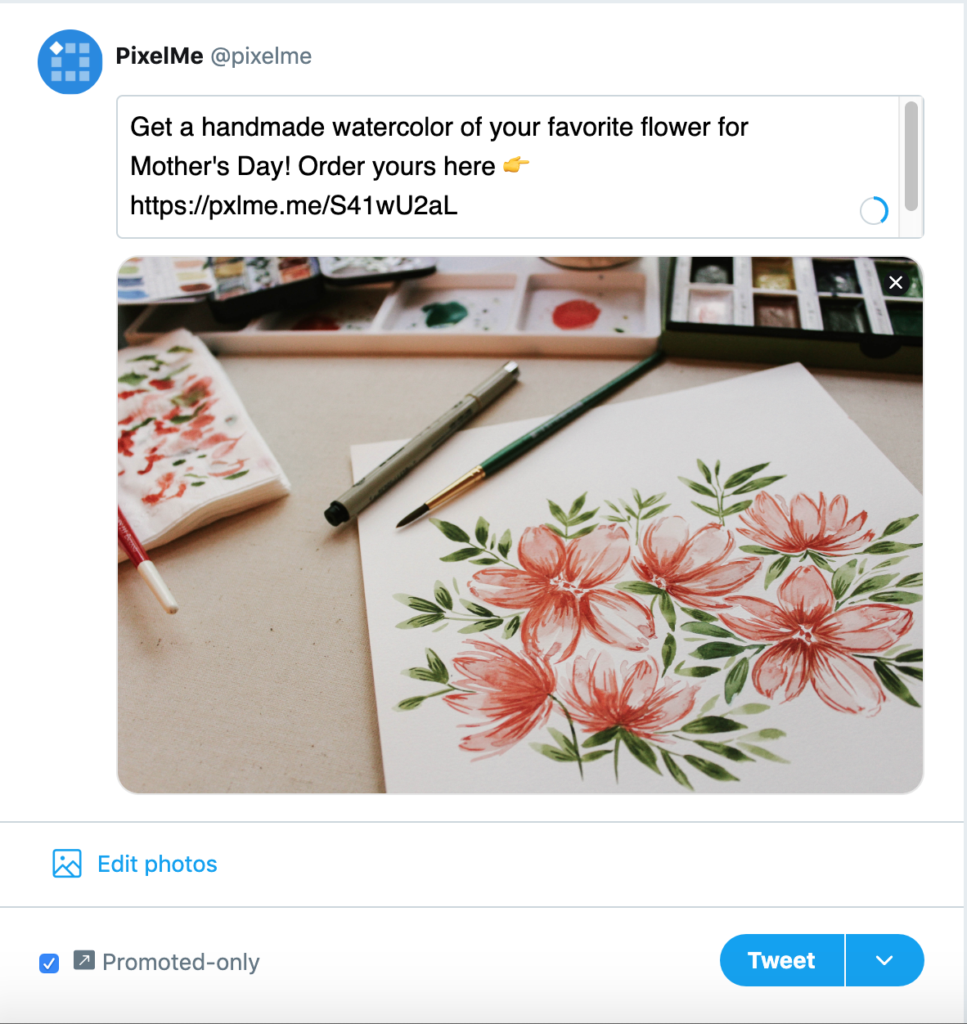
Now, all you need to do is Tweet out the Promoted-only post (or schedule it).
For the Cards option:
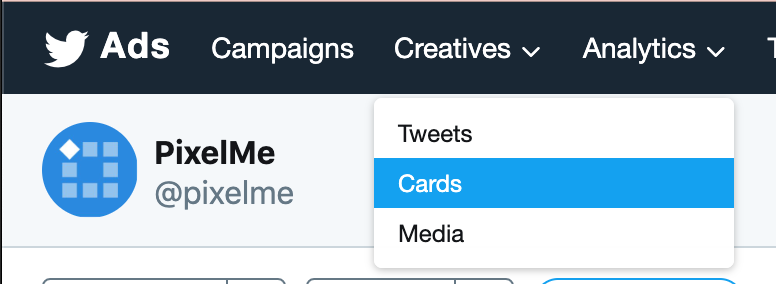
Go to ‘Creatives → Cards’, and press the ‘Create cards’ option in the top right corner. Select the Website card option.
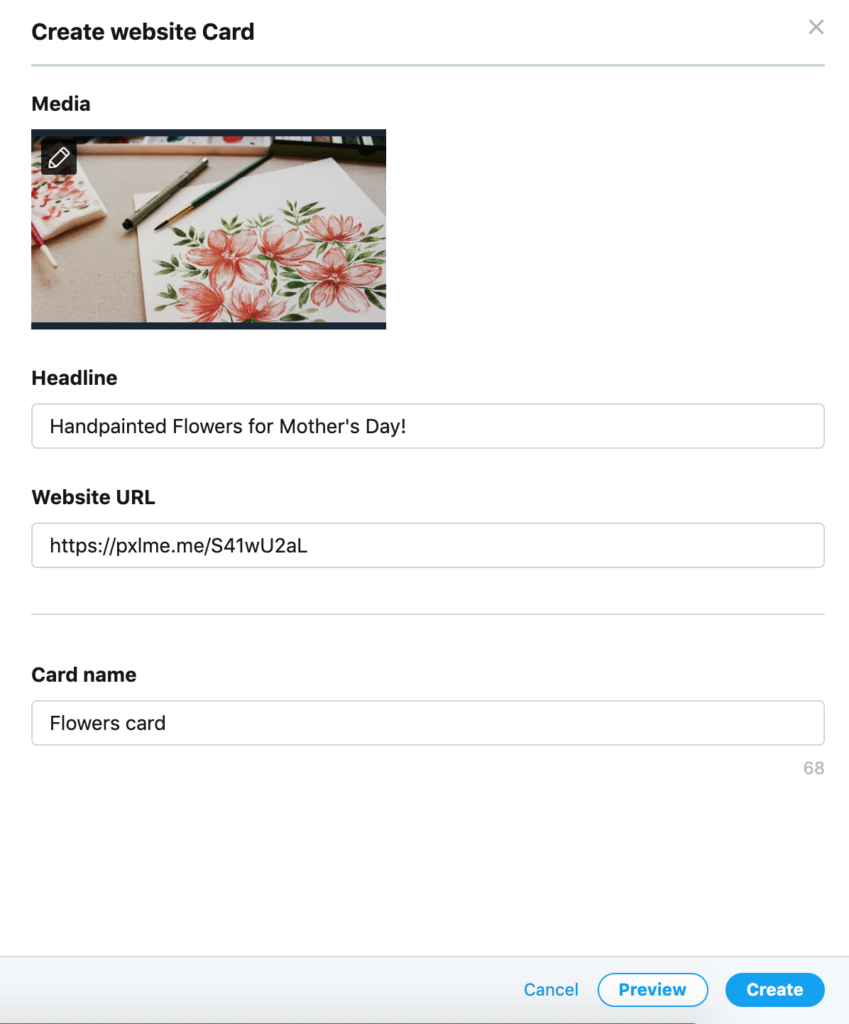
Set up your card with an image and message you’d like to have promoted. The message will be shown underneath the card, and the link should be your PixelMe URL!
Save the card, and go to ‘Creatives → Tweets’ and press ‘New Tweet’ in the top right corner. Now, you can create a Tweet that you’d like to have as your ad, and you should be able to select the card you just made under the ‘Select Card’ option.
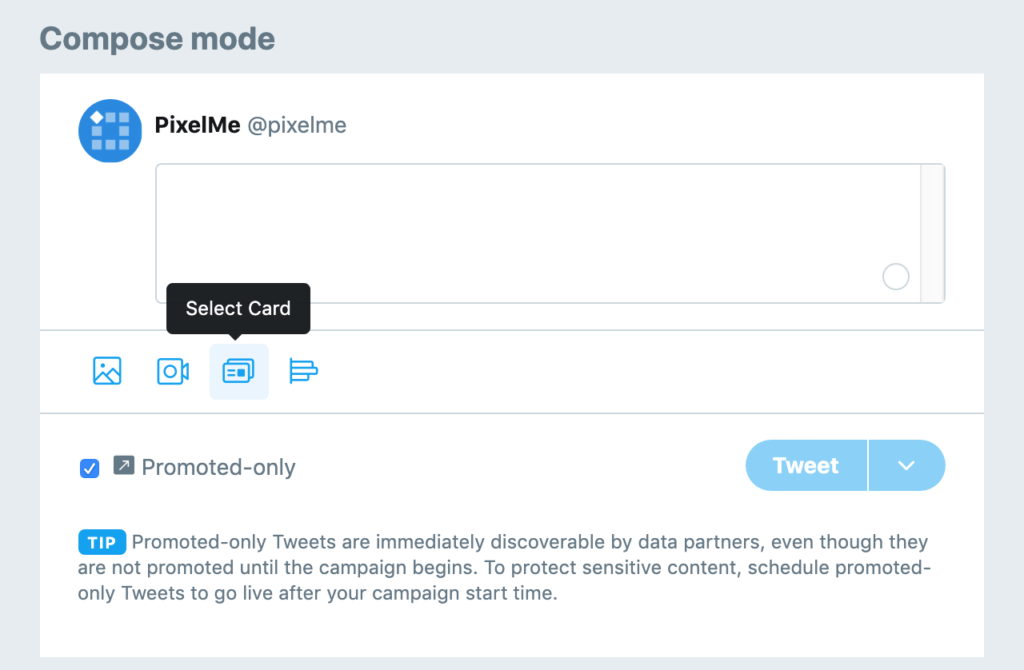
Write your Tweet with the content you’d like to have as the ad, then Tweet or schedule your post.
Note: if you’d like, you can also add the PixelMe URL in the Tweet itself, just in case you’re worried the audience won’t know to click the card. It’s up to you!
Now it’s time to set up your ad. Go to your campaigns tab, and set up a new campaign by clicking the ‘create campaign’ button in the top right corner.
Set up your campaign how you’d like to have it, it’s going to be different per ad. When you get to choosing the ‘Creatives’ portion, you should have the option to select the Tweet you just created (depending on if you scheduled it or Tweeted it, it will either be under “Promoted-only” or “Scheduled Tweets”). Select your Tweet, launch the ad, and you’re done!
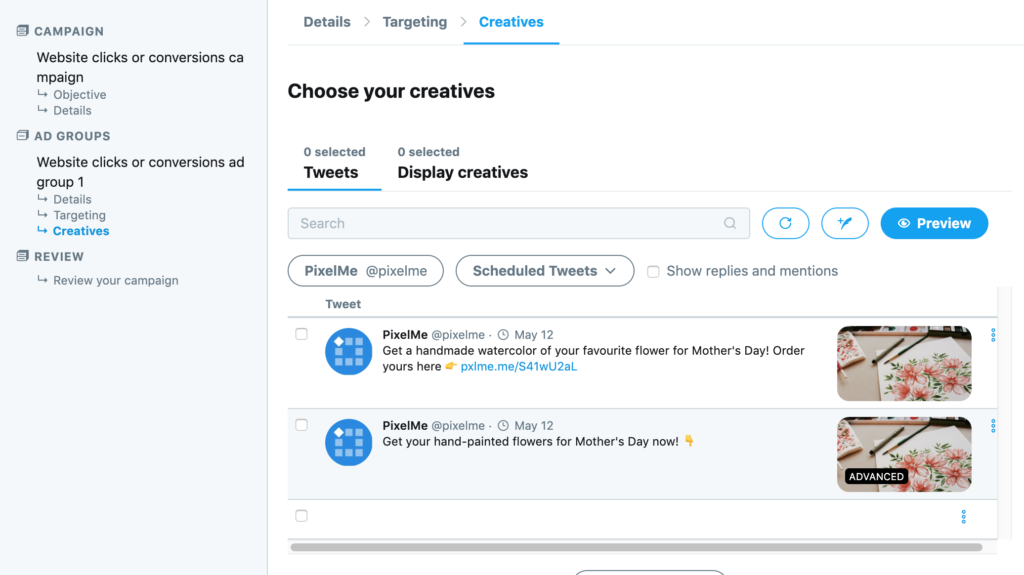
(Here you can see my two options – one using the Card, and one without)
That’s all! Now you’ve got your retargeting-enabled ad ready to go.
Not a PixelMe user yet? 👉Try PixelMe for free, the URL shortener for savvy marketers! Turn every link you share into perfectly targeted ads. 🚀
How can I use a PixelMe link in a Pinterest ad?
To use a PixelMe link in a Pinterest ad, you’ll have to start by creating your link on PixelMe. Add all the retargeting pixels you’d like, then copy the shortened link.
So now that you’ve got your link ready to go, it’s time to start using it!
Head to Pinterest for your next steps. First, make sure you’ve enabled ads on your account. Then, in the upper left corner, select ‘Ads’ then ‘Create ad’.
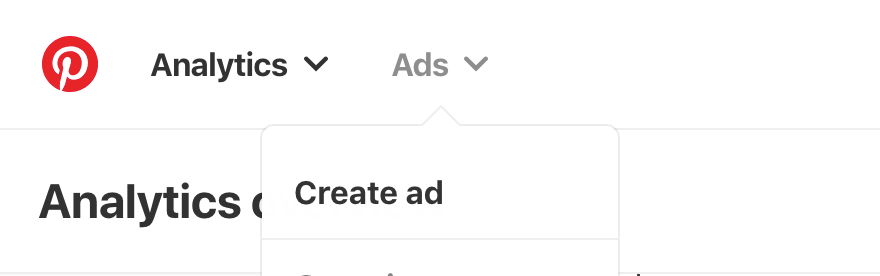
On the first page of the setup, put your objective and details to whatever your ad needs. Do the same for targeting – this part is entirely up to you and will vary depending on what your ad is and who it’s for.
When you reach the stage where you’ll have to pick a Pin to promote, create a new one. Set up the pin however you’d like, but make sure you use your shortened link as the destination URL!
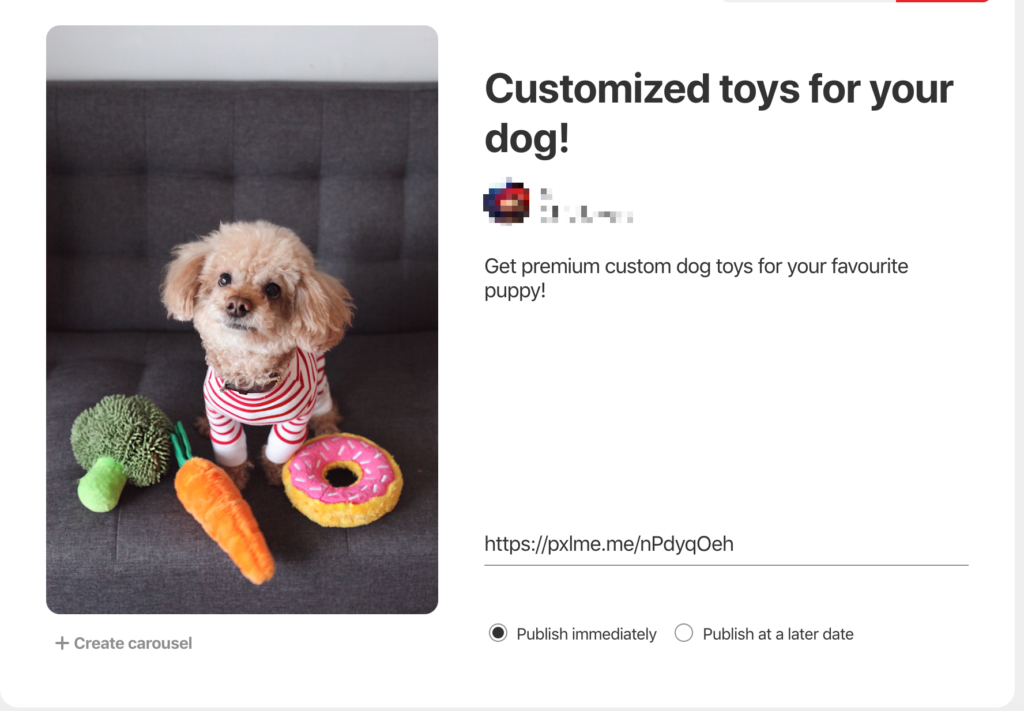
Publish the post, and you’re done! Anyone who clicks on your ad will be added to the retargeting audience of whichever platform’s pixels you added to the link.
Not a PixelMe user yet? 👉Try PixelMe for free, the URL shortener for savvy marketers! Turn every link you share into perfectly targeted ads. 🚀
How can I use a PixelMe link in a LinkedIn ad?
To use a PixelMe link in a LinkedIn ad, all you need to do is paste your shortened URL in the ‘Landing page URL’ section of the ad creation process.
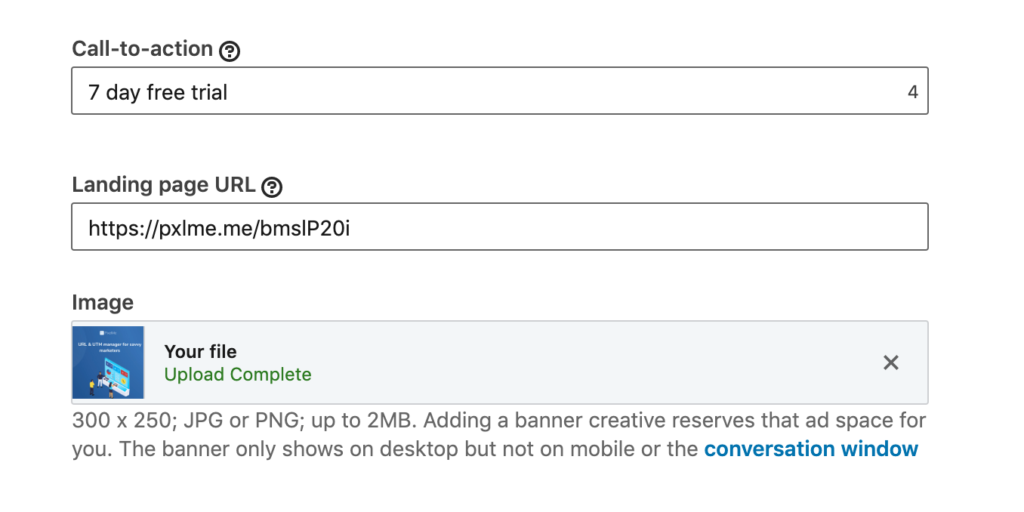
When you launch the ad, users who click on the ad will be added to the retargeting audience of the platforms whose pixels you added to the link.
Not a PixelMe user yet? 👉Try PixelMe for free, the URL shortener for savvy marketers! Turn every link you share into perfectly targeted ads. 🚀
How can I use a PixelMe link in a Google ad?
It’s possible to use a shortened, retargeting-enabled PixelMe link in a Google ad. I just requires a small workaround 😊
First, create your link in whatever way you’d like. You can add UTMs and retargeting pixels as well. Copy the shortened link.
Head over to your Google Ads account, and set up an ad in whichever way best suits you.
Navigate to your Campaigns → Ad groups, and either create a new ad or edit a campaign you’re already running.
The most important part here is that when you’re writing your ad copy, you expand the ‘Ad URL options’ at the bottom of the page and paste your shortened link in the tracking template.
In the “Final URL”, put the URL as it was before you shortened it.
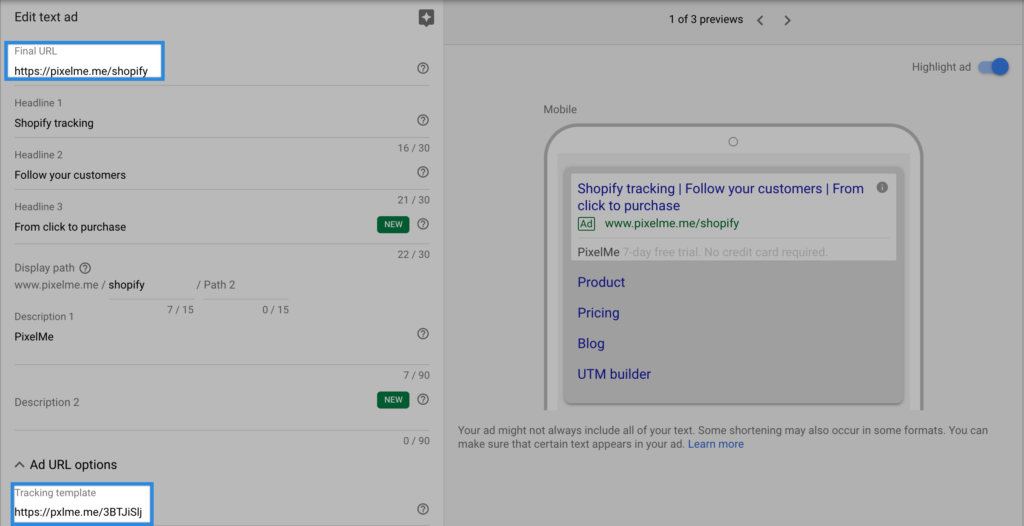
That’s all! You should now be able to launch your ad and retarget the clicks on your link. 💪
Not a PixelMe user yet? 👉Try PixelMe for free, the URL shortener for savvy marketers! Turn every link you share into perfectly targeted ads. 🚀
How can I use a PixelMe link in a Facebook ad?
Start by creating a shortened link in PixelMe and attach any retargeting pixels you’d like. Copy this link, then go to your Facebook Business Manager and open your Ads Manager.
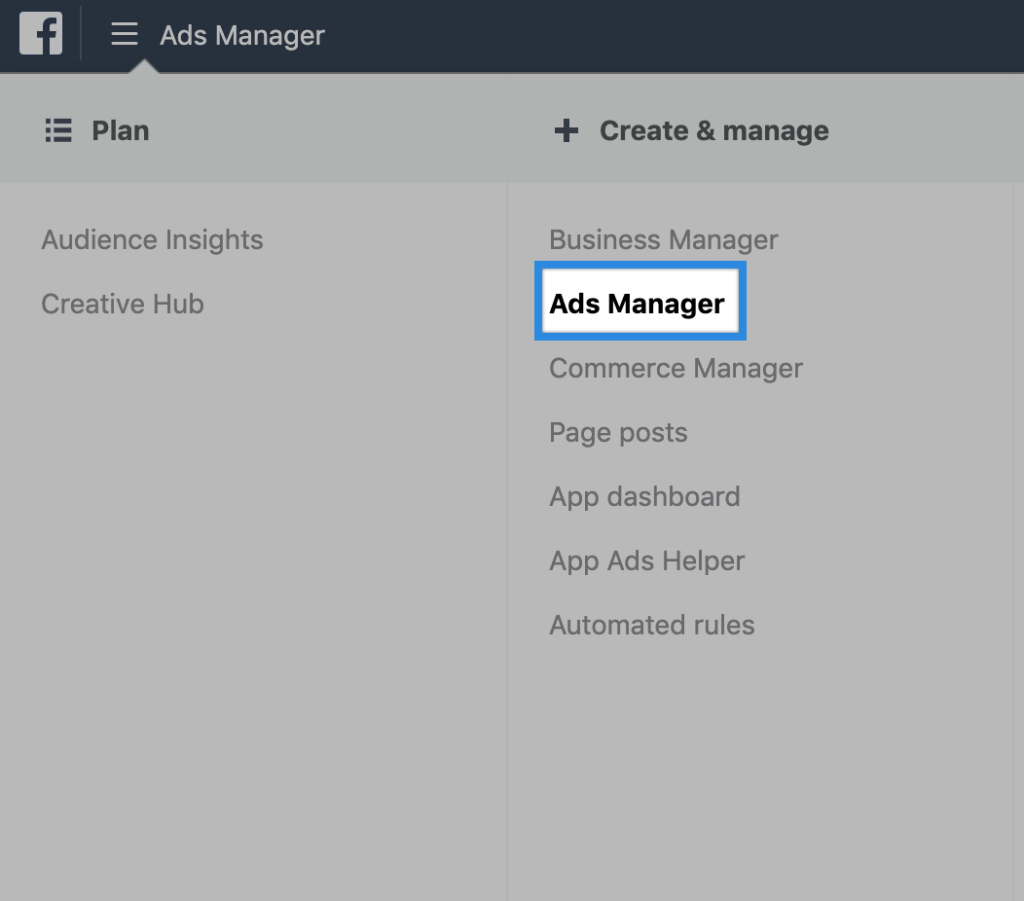
Create a new ad. Set up the parameters of the ad however you’d like, until you get to the ‘links’ section of the ad. Here, you can add your PixleMe shortened link.
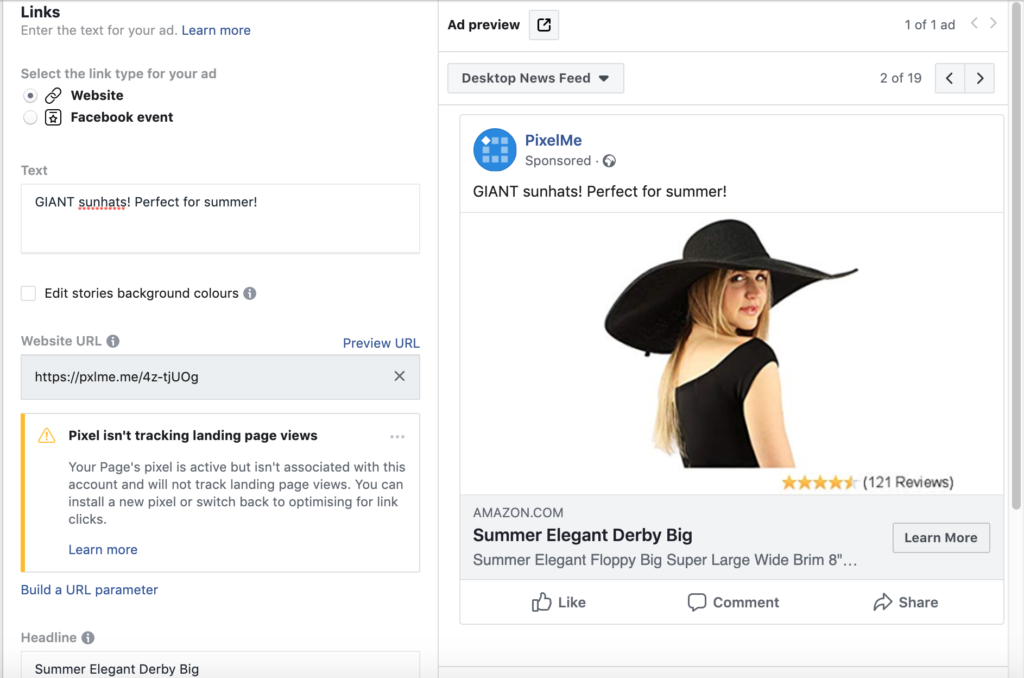
Just paste your link in the ‘Website URL’ section. The preview should update with the information from your destination URL.
(Note: if nothing happens when you add the link, try clicking outside the text box to trigger the preview to load).
Now you can just launch the ad! 💪
Not a PixelMe user yet? 👉Try PixelMe for free, the URL shortener for savvy marketers! Turn every link you share into perfectly targeted ads. 🚀
How can I track visitors on my site?
You can track the traffic on your site using the PixelMe conversion pixel, which you will need to add to each page of your website. All you need to do is copy the tracking code provided in our dashboard and paste it before the closing head tag in any HTML pages you wish to track events. This way, you can get a clear view of the paths users are taking through your site.
Not a PixelMe user yet? 👉Try PixelMe for free, the URL shortener for savvy marketers! Turn every link you share into perfectly targeted ads. 🚀
How can I retarget my Amazon visitors using Facebook Ads?
One of the many great ways you can use PixelMe is by setting up a link between your Amazon product page visitors and your Facebook Ads manager. This way, you can retarget your users with ultra-specific ads! 🚀
What you’ll need before we start:
- A PixelMe account. (Don’t have one yet? Sign up for a 7 day free trial!)
- The URL of the Amazon page you want to promote.
Step 1: Create a Facebook Pixel ID and add it to your PixelMe account.
If you haven’t done so already, follow the steps on this page. Then, find your Pixel ID, and add it to your account! ✨
Step 2: Shorten the link of your Amazon page.
Once you have the Facebook pixel set up, you can go to the upper right corner of your PixelMe dashboard and click ‘Create a Link’.
Here, you can paste your Amazon product page link in the ‘Destination URL’ bar. Adjust the UTM settings to your needs, and in the Retargeting Pixels drop down menu, select your Facebook pixel. If you have a custom domain in place, you can also use that to shorten your link. Now, all you need to do is click on ‘Save your link’ and boom! 💥 You’re ready to share your page.
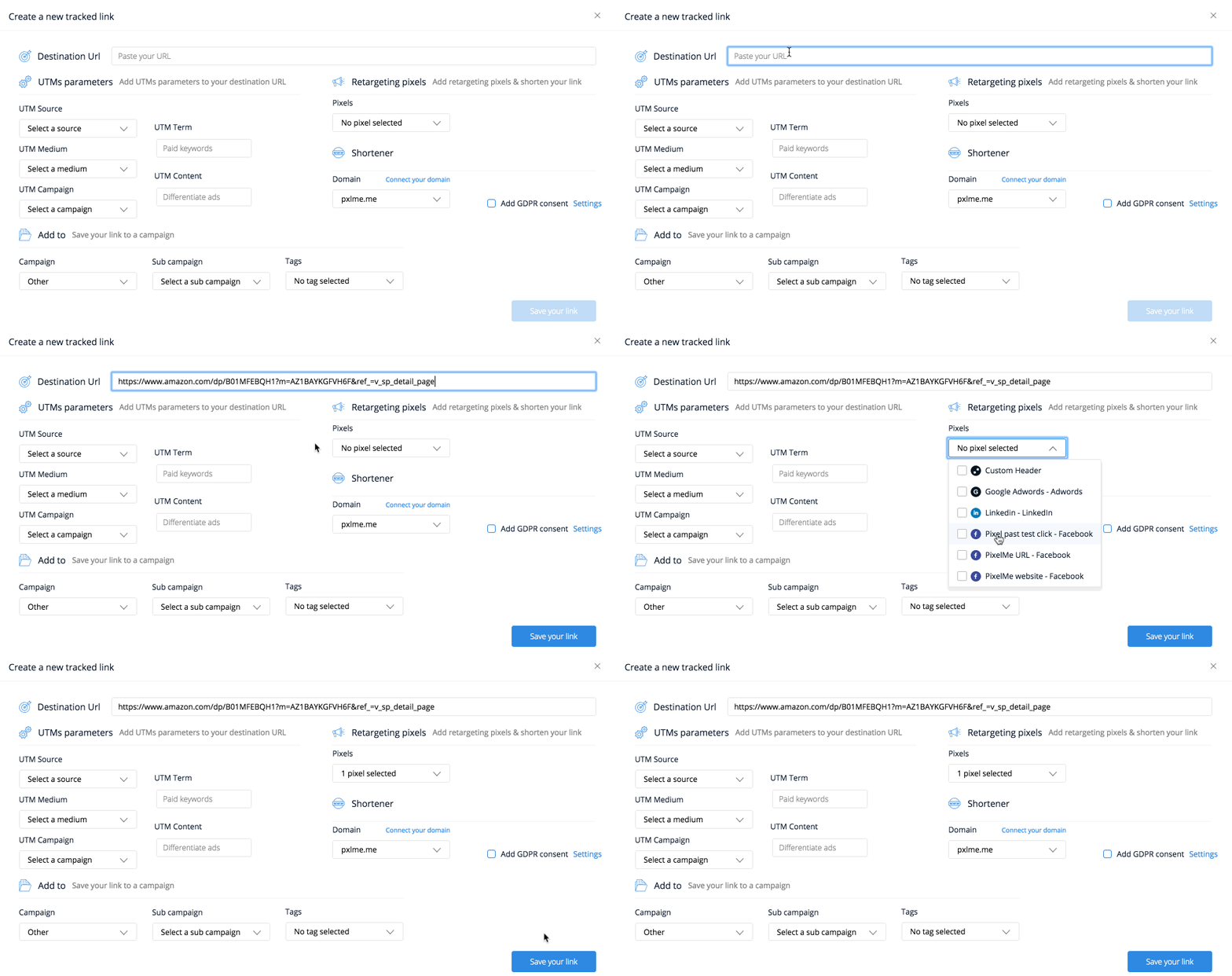
Step 3: Start sharing your link!
For this step, you can share your link anywhere you’d like; you can even start using it in Facebook ads.
Give your link a few days to gather clicks. Remember, it might take a while before you see any events in your Facebook Business Manager, but that’s to be expected. There may be a delay of a few hours to a day, so don’t panic if you’re not seeing any numbers there immediately. 🙈
Step 4: Create a retargeting audience with your Amazon users.
You’re almost there! Once you’ve gathered a good amount of clicks, go back to your Facebook Ad Manager and find your Pixel under the Events tab.
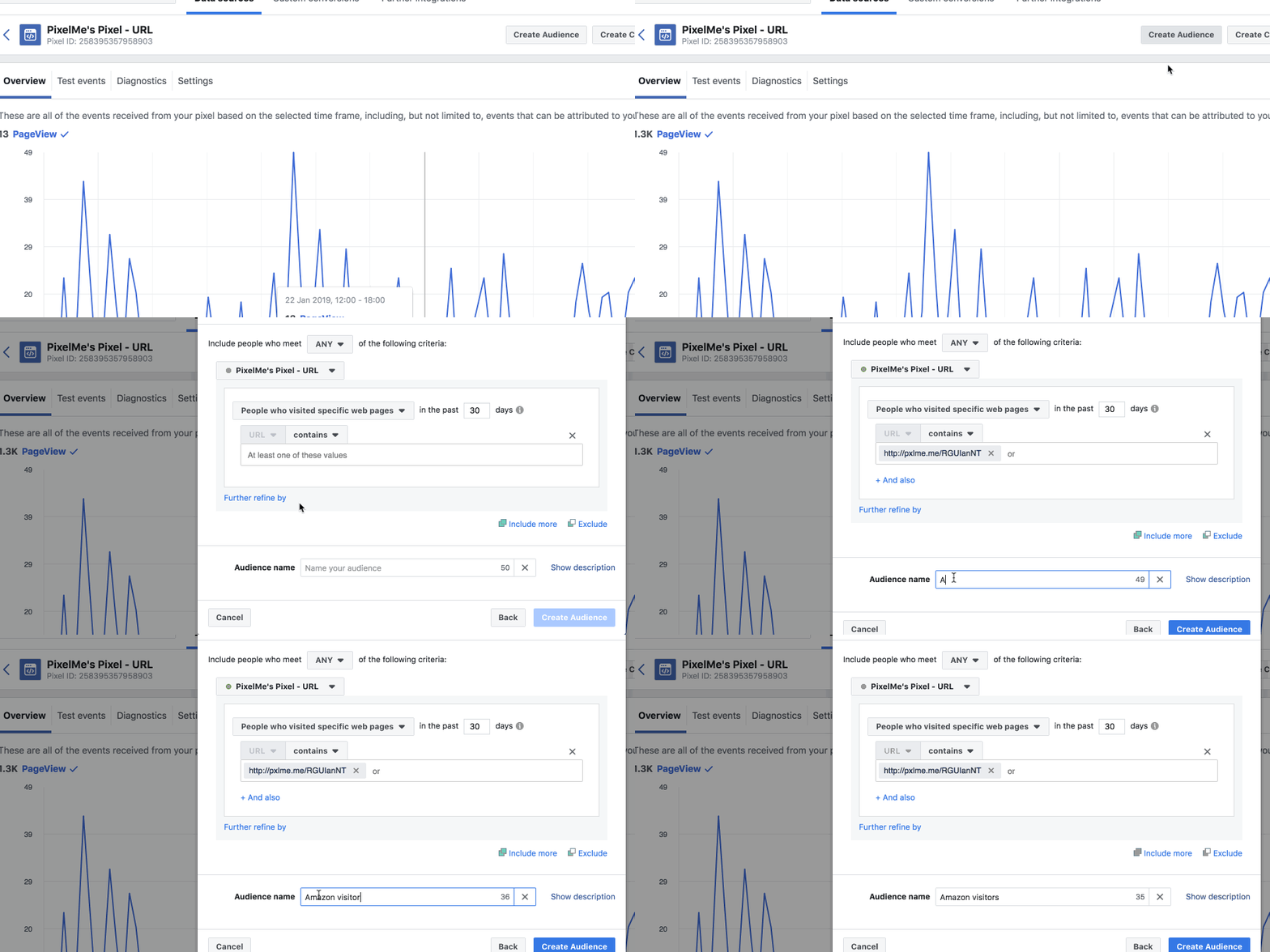
Once there, click ‘Create Audience’ to start segmenting your users. In the window that pops up, do the following:
- Select the option that says “People who visited specific web pages”.
- Insert your PixelMe shortened URL (multiple links can be inserted, if needed).
- Give it a name!
- Save.
Step 5: Create your retargeting ad!
With your newly created audience, you can now create your Facebook retargeting ad! Just make your campaign, and when choosing the audience, pick the one you just created. You can now send the users back to your Amazon product page, or redirect them to a different landing page. The choice is yours! 🙌
Not a PixelMe user yet? 👉 Try PixelMe for free, the URL shortener for savvy marketers! Turn every link you share into perfectly targeted ads. 🚀
How can I create multiple accounts?
Want to manage multiple clients with one account? No problem!
All of our plans include unlimited accounts, since they’re only based on the total amount of clicks per month, not the amount of accounts. 😄
To create a new account, just navigate to the top right of your screen and click on your Company name. Press ‘Add account’ and give it a name.
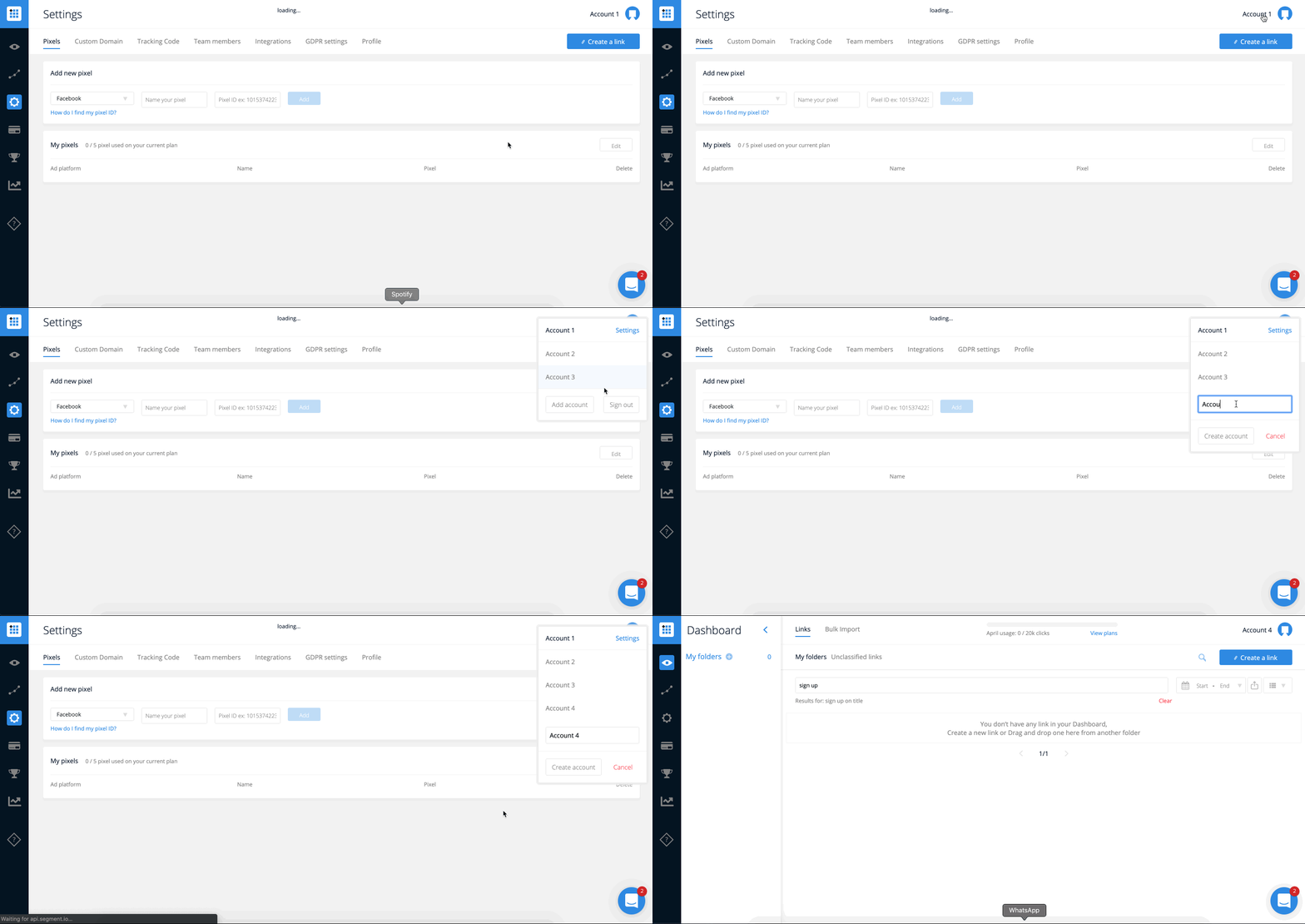
That’s all! Now, you can keep all your links separated by client, campaign, or any other segmentation you’d like. ✨
Not a PixelMe user yet? 👉Try PixelMe for free, the URL shortener for savvy marketers! Turn every link you share into perfectly targeted ads. 🚀
How To Import Adwords Campaigns
How To Download Raw Data Reports
How To Connect Your Google Ads Account
How To Connect TikTok Ads Account to PixelMe
How To Connect Amazon Attribution Account
How To Add an Amazon Product on PixelMe
How To Add a Workspace on PixelMe
How To Add a Custom Domain
How To Add TikTok Pixel to PixelMe
How To Add Google Adwords Pixel
Getting started with PixelMe
In this section of our help guide, we’ll take you through how to set up your account and create your first links.
If you’d like to create your first link, you can continue to the next article.
If you’re new to retargeting, you can find out what retargeting is here.
If you’re already aware of what remarketing is and how to use pixels, you can move on to finding and adding your pixels to the PixelMe dashboard.
Not a PixelMe user yet? 👉 Try PixelMe for free, the URL shortener for savvy marketers! Turn every link you share into perfect targeted ads. 🚀
Getting Started With Tiktok Ads
Getting Started With Google Ads
Getting Started With Facebook Ads
Enroll in Brand Referral Bonus Program
Time to complete: 1 min
The Brand Referral Bonus program credits Brands an average of 10% of sales from traffic you have driven to Amazon. The program helps you advertise efficiently by receiving the same bonus for customer purchases of additional products from the Brand up to 14 days after clicking on the ad.
The program also helps you accelerate growth by improving the efficiency of your non-Amazon marketing efforts that drive referral traffic to Amazon.
Note: This is not enabled by default, you need to enroll in the program by clicking the link below.
Who is eligible to join the Brand Referral Bonus program?
All brand owners selling in Amazon’s US store are eligible to enroll.
How do I get started?
Enroll in the Brand Referral Bonus Program Below
Click the link below to Enroll
Enroll in Brand Referral Bonus US Marketplace
If you need help setting this up, contact us here.
Do you support SSL/HTTPS on custom domains?
Yes, we do! 😊 However, it’s not currently automated – if you would like to have SSL on your custom domain, please contact us and we’ll manually activate it for you.
Not a PixelMe user yet? 👉Try PixelMe for free, the URL shortener for savvy marketers! Turn every link you share into perfectly targeted ads. 🚀
Do you offer a discount to non-profit organizations?
We’re thrilled to offer a 50% to all non-profit organizations. All we’d need is a copy of your 501c3 or equivalent documentation to support your tax exempt status.
Feel free to contact us and we’ll get you set up!
Not a PixelMe user yet? 👉Try PixelMe for free, the URL shortener for savvy marketers! Turn every link you share into perfectly targeted ads. 🚀
Do you have any video tutorials?
We do! 🎉
You can find us on Loom or YouTube.
We’re constantly creating more videos, so if there’s anything specific you’d like to see, please reach out to us!
Not a PixelMe user yet? 👉Try PixelMe for free, the URL shortener for savvy marketers! Turn every link you share into perfectly targeted ads. 🚀
Do I need a new Pixel or can I use the one on my website?
You don’t have to create a new one. You just have to use the pixel from the ad account you want to retarget customers from. That being said, in order to better keep track of your campaigns and metrics, if you can create a second Pixel in your ads manager, we advise you to do so. 😊
Not a PixelMe user yet? 👉 Try PixelMe for free, the URL shortener for savvy marketers! Turn every link you share into perfect targeted ads. 🚀
Creating a Twitter ad using PixelMe
In order to get started with your targeted Twitter ad, make sure you’ve set up your Twitter pixel in your PixelMe dashboard and you’ve created some links with it. Give your links a few days to gather clicks before creating an ad.
Once you’ve done that, you can continue here!
Step 1: Go to your Audience Manager.
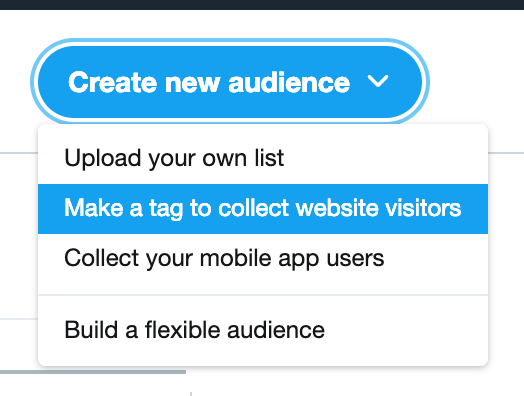
In the navigation at the top of your Twitter Ads Manager, go to Tools -> Audience Manager. From here, press the button ‘Create new audience’, and pick ‘Make tag to collect website visitors’.
Step 2: Create your tailored audience.
Give your new audience a name to help you recognize it later. Select the ‘universal website tag’ and choose one of the following:
- ‘All website visits’ – this will create an audience of anyone who clicked on your links which had your Twitter pixel attached.
- ‘Exact URL’ – you can use this to target only people who visited specific links, if you’d like to be very specific with your targeting. You can either enter one link, or multiple. However, Twitter does require you to have at least 100 users in your audience, so make sure you have enough clicks on your links before trying to create this audience.
Save your audience.
Step 3: Create the ad!
For this step, you’ll have to navigate to the campaign dashboard and create a new campaign for yourself. Set it up the way you’d like, until you get to the ‘targeting’ section.
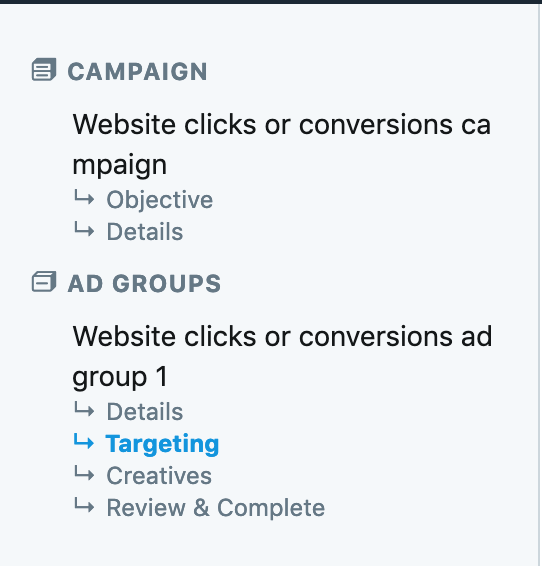
In the ‘Your audiences’ dropdown menu, choose ‘Tailored audiences (web)’. Your custom audience should be in this list. Select it, then finish setting up your ad.
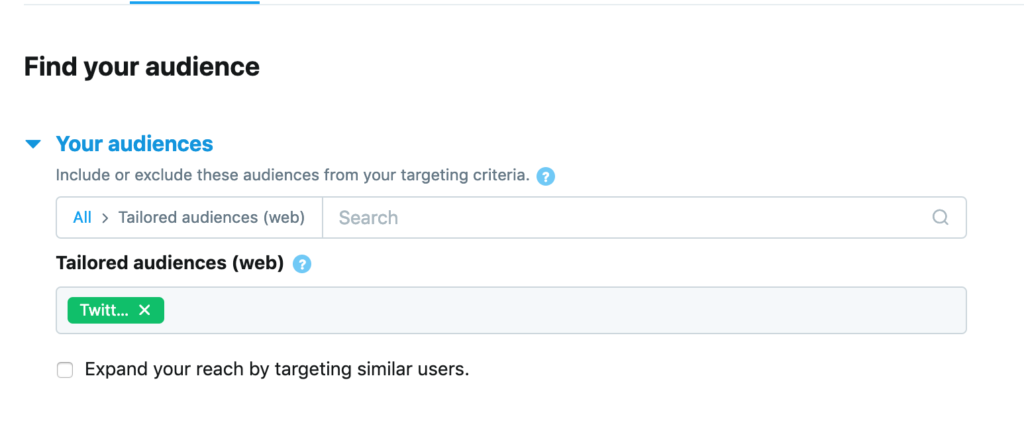
That’s all! Now, you’re ready to launch your ultra-targeted Twitter ad 😄
Not a PixelMe user yet? 👉 Try PixelMe for free, the URL shortener for savvy marketers! Turn every link you share into perfectly targeted ads. 🚀
Creating a LinkedIn ad using PixelMe
To get started with your first PixelMe based LinkedIn ad, you first need to set up your LinkedIn pixel, create some links, and give them a few days to gather clicks. Once that’s done, you can continue here.
Step 1: Create the audience.
Navigate to your ‘Matched audiences’ in the ‘Account Assets’ menu.
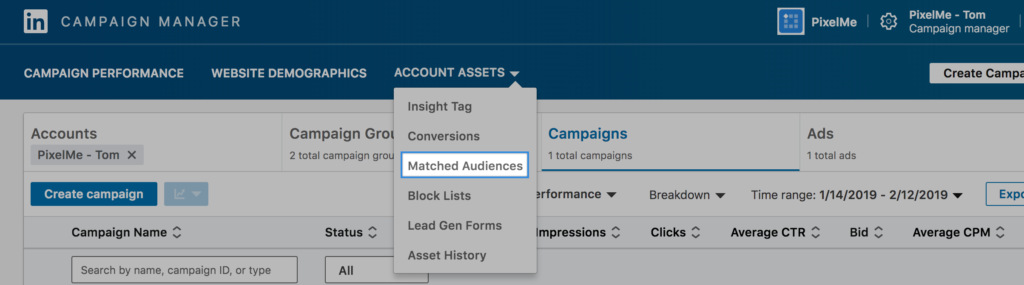
Press the ‘Create Audience’ button on the right hand side. In the modal window that pops up, you can set the parameters for your new custom audience.
Give your audience a name, then choose one of two options: either, set your audience to only include people who clicked on specific links. You can include multiple URLs if you’d like.
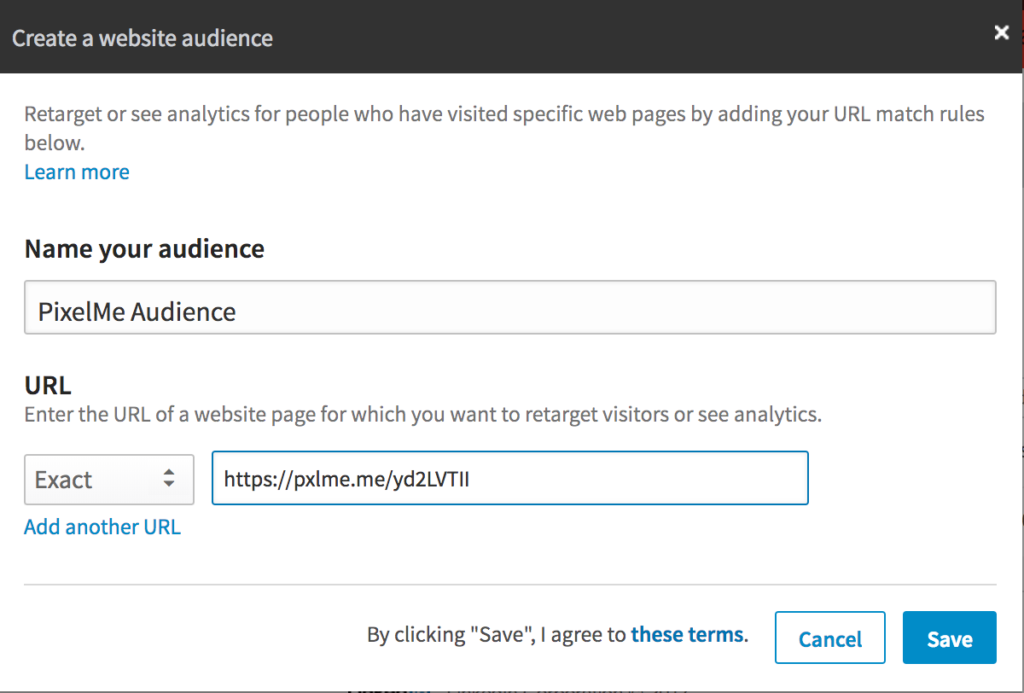
OR, you can select your entire PixelMe audience by setting the URL parameter to ‘Contains’ and ‘pxlme.me’.
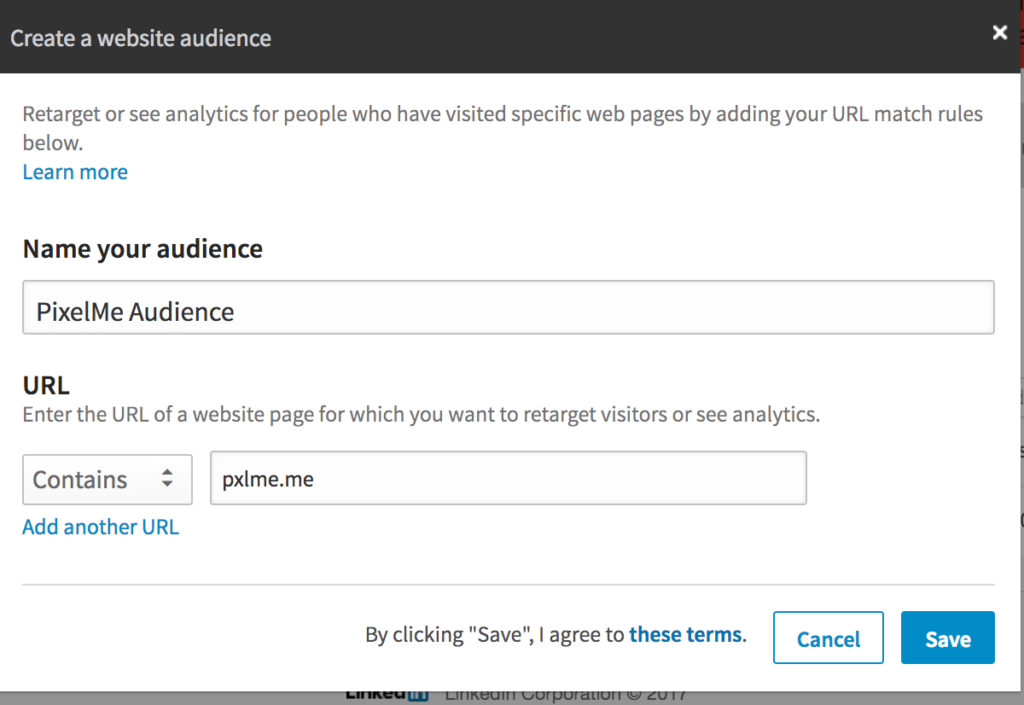
Save your audience.
Step 2: Select your audience.
Once you’ve created your audience, you can click on ‘Create campaign’ in the right hand corner of the page. Give it a name, and set your objective.
In the Audience section, click on Match audiences -> Website audiences -> the audience you just created. Press save on your audience.
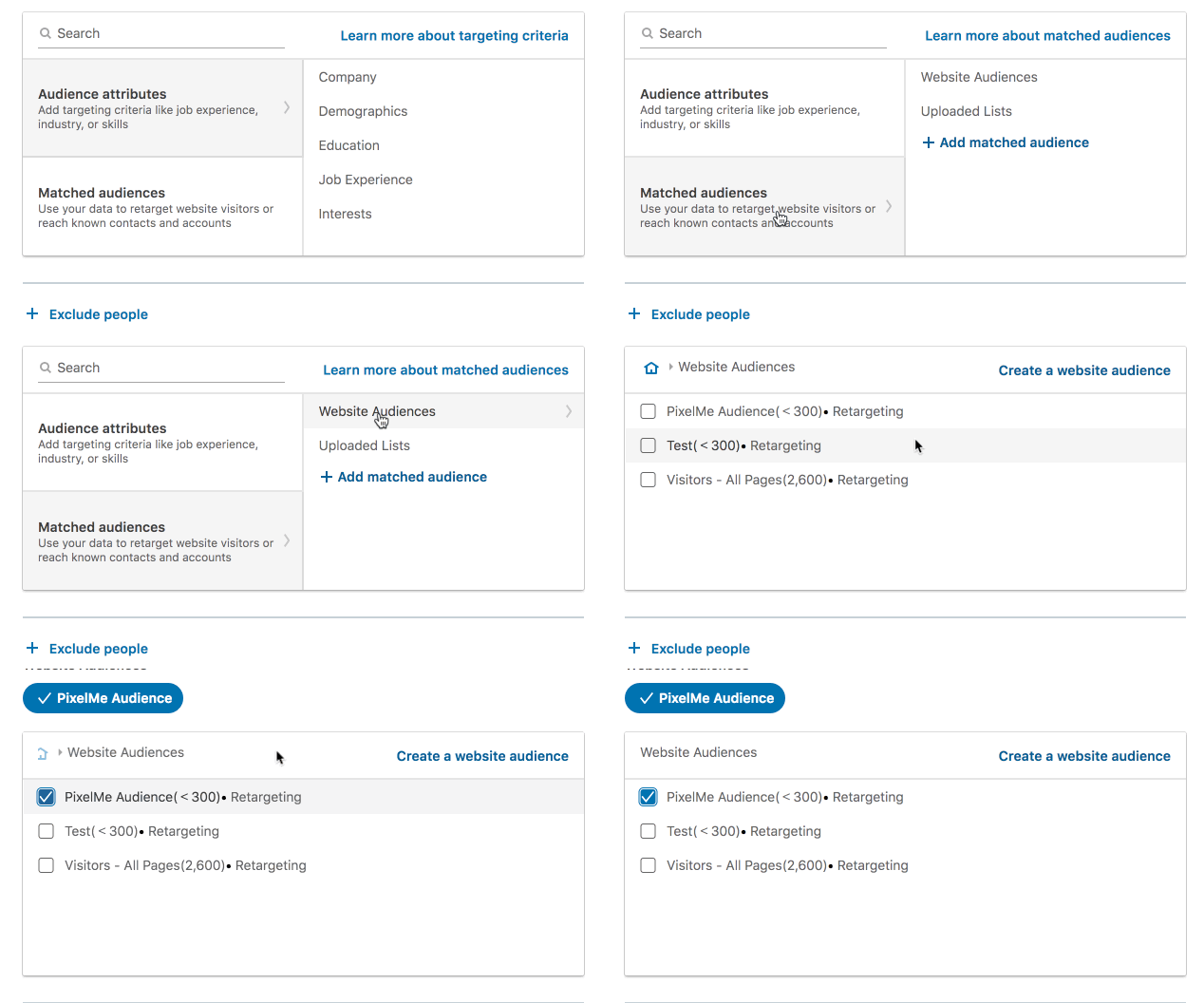
Step 3: Finish your ad and post!
Continue setting up your ad with the setting you want. Once it’s ready, you can launch your first retargeting ad! ✨
Not a PixelMe user yet? 👉 Try PixelMe for free, the URL shortener for savvy marketers! Turn every link you share into perfectly targeted ads. 🚀
Creating a Google Ad using PixelMe
Once you’ve set up your Google Adwords pixel and given your new links a few days to gather clicks, you’re ready for the next step – creating your ultra-targeted ad 🙌
Step 1: Go to your Audience Manager
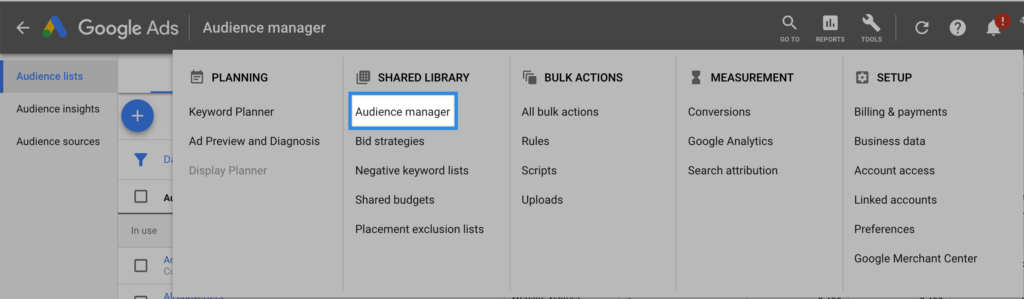
You can find it in the Tools menu.
Step 2: Create a new audience
Press the blue plus sign in the left hand corner, then select ‘Website visitors’ to open the ad creation window.
Name your audience something you will be able to recognize later. Set ‘list members’ to ‘visitors of a page’ (unless you’d like to set your list up differently; for example, if you want to only target users who haven’t purchased your product before. In that case, you can choose ‘Visitors of a page who did not visit another page’ and set your purchase confirmation page as the excluded page.)
In the ‘Visited page’ section, you can choose to either include your entire PixelMe audience, or just visitors to certain PixelMe links. To set it up for your entire audience, set URL to contain pxlme.me, like so:

Due to the volume that Google Adwords requires for an audience (over 1000 users), we recommend this option for Google ads.
However, if you’d like to target users who visited a specific link (or links), you can set the URL to exactly the ones you’d like to use, like so:
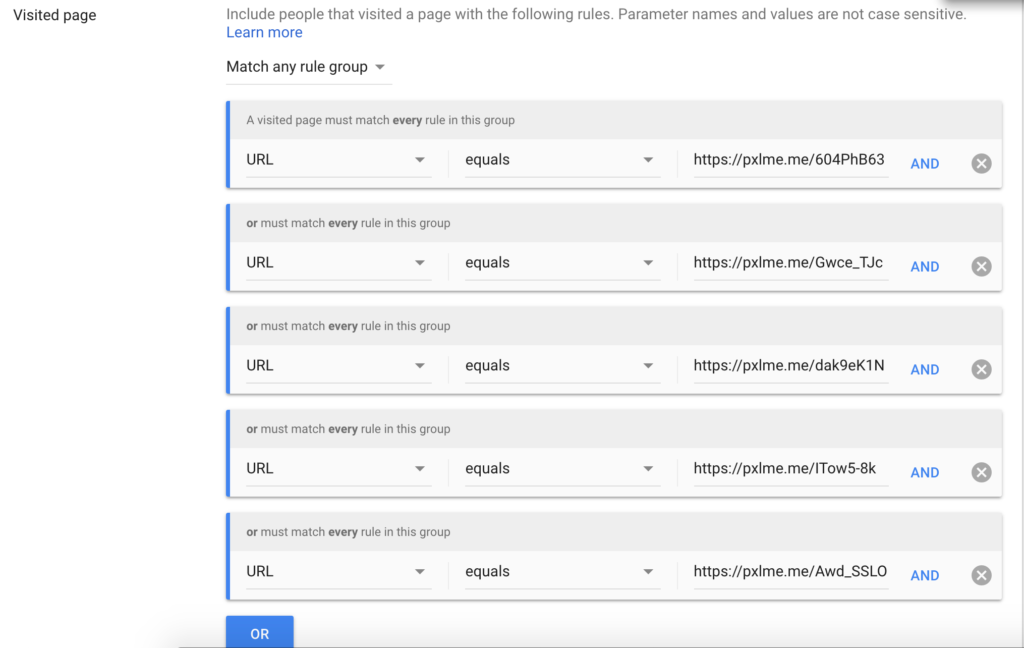
Remember to press ‘OR’ to add a new URL, not ‘AND’.
Set the rest of your parameters, and save your audience.
Step 3: Create your ad
With your new audience saved, go ahead and create a new campaign. When you reach the ‘audiences’ section, you can find the audience you just created under ‘How they’ve interacted with your business’ -> ‘Website visitors’ -> Your list. Set the targeting option to ‘Targeting’, not ‘Observation’ to make sure you’re targeting exactly the right users.
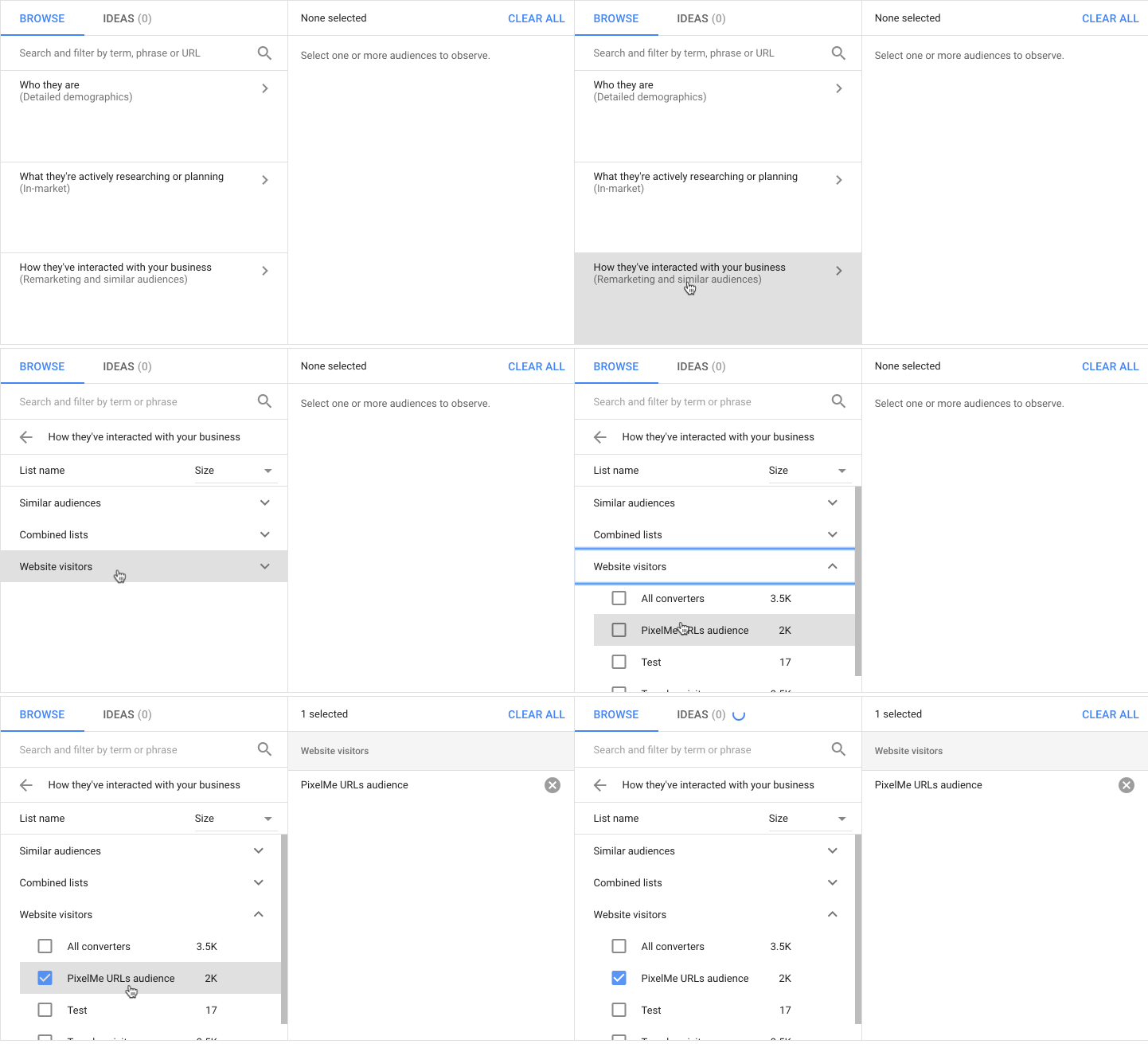
Finish setting up the rest of your ad, launch it, and you’re done! 🎉
Not a PixelMe user yet? 👉 Try PixelMe for free, the URL shortener for savvy marketers! Turn every link you share into perfectly targeted ads. 🚀
Creating a Facebook ad using PixelMe
In order to create a new custom audience on Facebook using your PixelMe links, you will first need to give your links a few days to gather clicks. Once you have gathered a good amount, you can start to set up your first campaign based on your PixelMe audience! 🙌
https://www.loom.com/share/9fe58987035b4b0d93cec00bd45f34a6?sid=0e307499-0c17-4516-81a9-13768dc25b79
Step 1: Go to your Events Manager on Facebook.
Once you’re logged into your Business Manager, you can find the ‘Events Manager’ in the navigation. Click on your pixel.
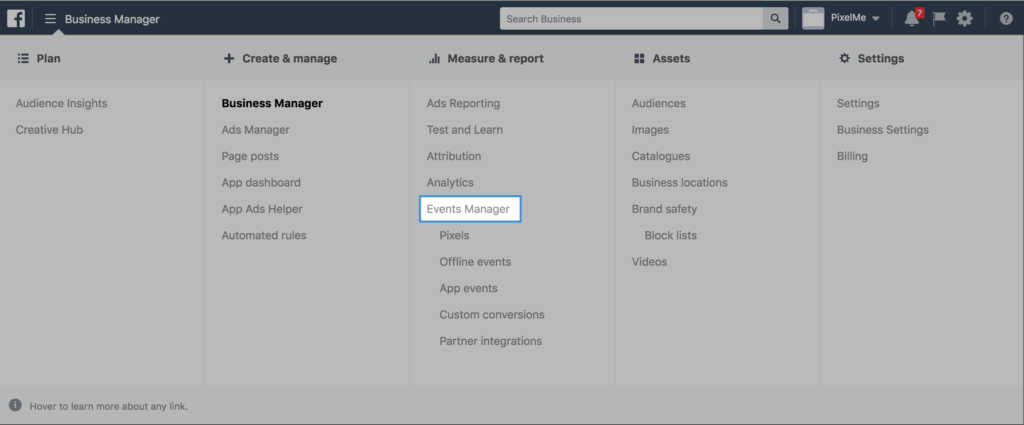
If you have multiple active pixels, select the pixel you’ve been using with your tracked links.
Step 2: Create a custom audience.
Once there, click ‘Create Audience’ to start segmenting your users.
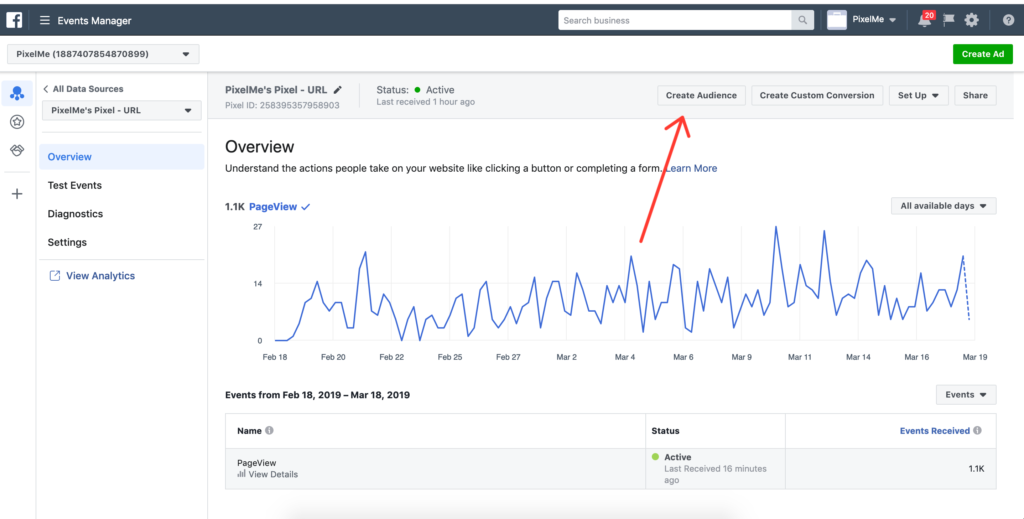
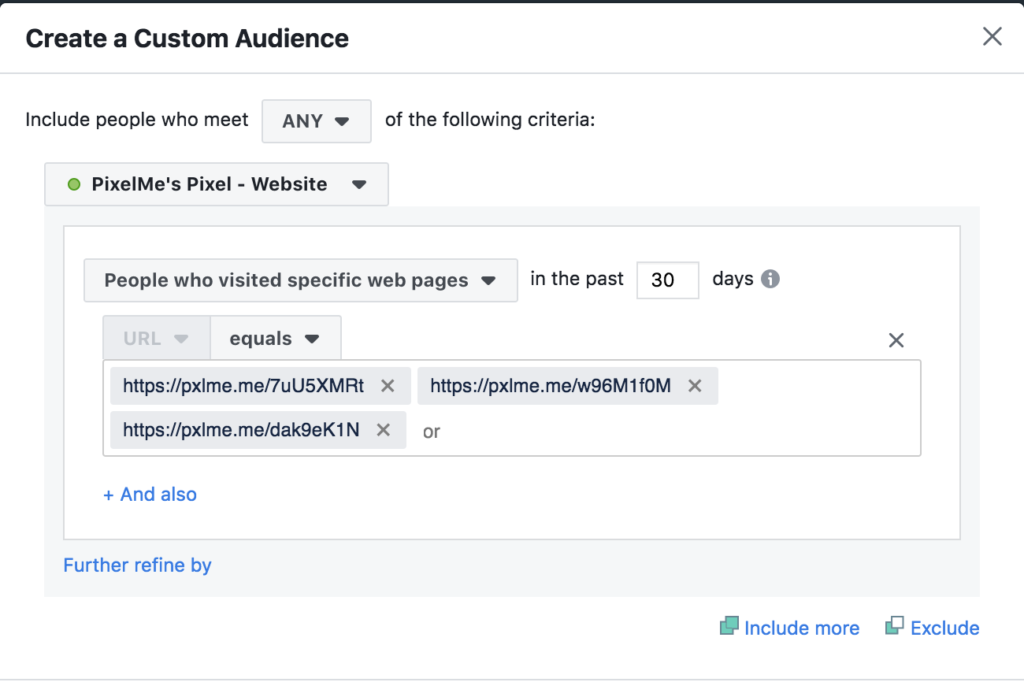
In the window that pops up, do the following:
- Select the option that says “People who visited specific web pages”. Here, you can either choose to select URL -> ‘equals’ and add the specific links you’d like, OR you can choose to select all your pixelme links by pressing URL -> ‘contains’ and writing ‘https://pxlme.me’ (or if you’re using a custom domain, add the domain you’re using)
- Give it a name! Make sure you can recognise it later on. For the sake of this post, let’s say you named it ‘PixelMe Audience’
- Click ‘Create Audience’.
Step 3: Create a new ad using your audience.
Now that you have your PixelMe based audience set up, you can start creating your ultra-targeted ad for them! All you have to do is select the audience you just created (your ‘PixelMe Audience’) when you’re making your ad.
In your Facebook Business Manager’s menu, go to ‘Ads manager’ in the top left of the screen. Create a new campaign or use an existing one. Once you’ve set this, you can edit the ‘Ad set’ setting.
In ‘Ad set’ in the left menu, you’ll have the ability to customize the Audience. If you click on ‘Create New’ and then use the ‘Custom Audience’ drop down menu, you should be able to see the list of all the Custom Audiences you’ve already created and the number of people each audience contains. Pick the ‘PixelMe Audience’ you created.
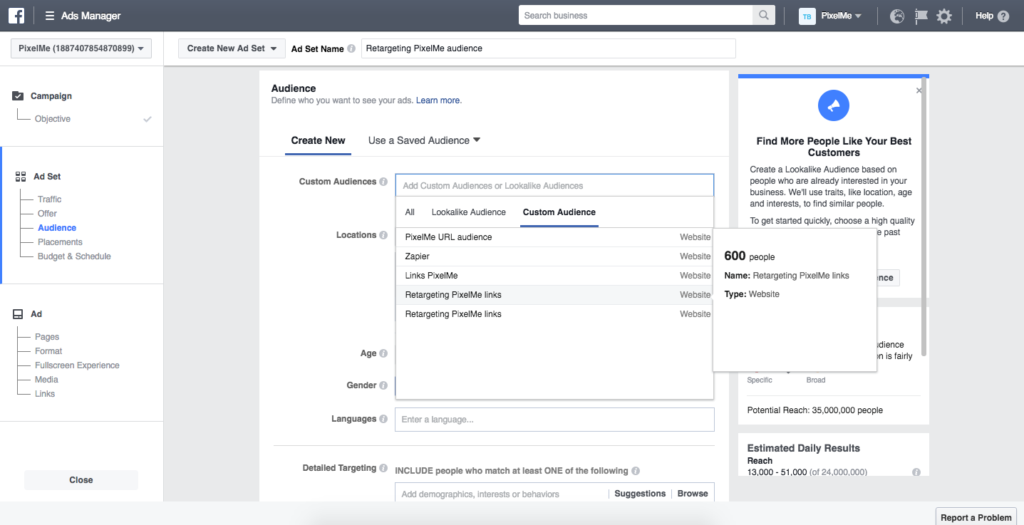
All you need to do now is create the ad you want to run. The hard part is already done – finding the right people to target! 💥
Once you create the ad, you’re finished! Congratulations, you just launched your first ultra-retargeted ad! 🎉
Not a PixelMe user yet? 👉 Try PixelMe for free, the URL shortener for savvy marketers! Turn every link you share into perfectly targeted ads. 🚀
Creating Tiktok Campaigns with Pixelme
work in progress
Contact our support
Are your QR codes dynamic?
If you change the shortened URL or slug of a link connected to a QR codes, the code will reset. However, you can change all other parameters of the link, such as the title, destination URL, UTMs, or tags, without it affecting the QR code.
Not a PixelMe user yet? 👉 Try PixelMe for free, the URL shortener for savvy marketers! Turn every link you share into perfect targeted ads. 🚀
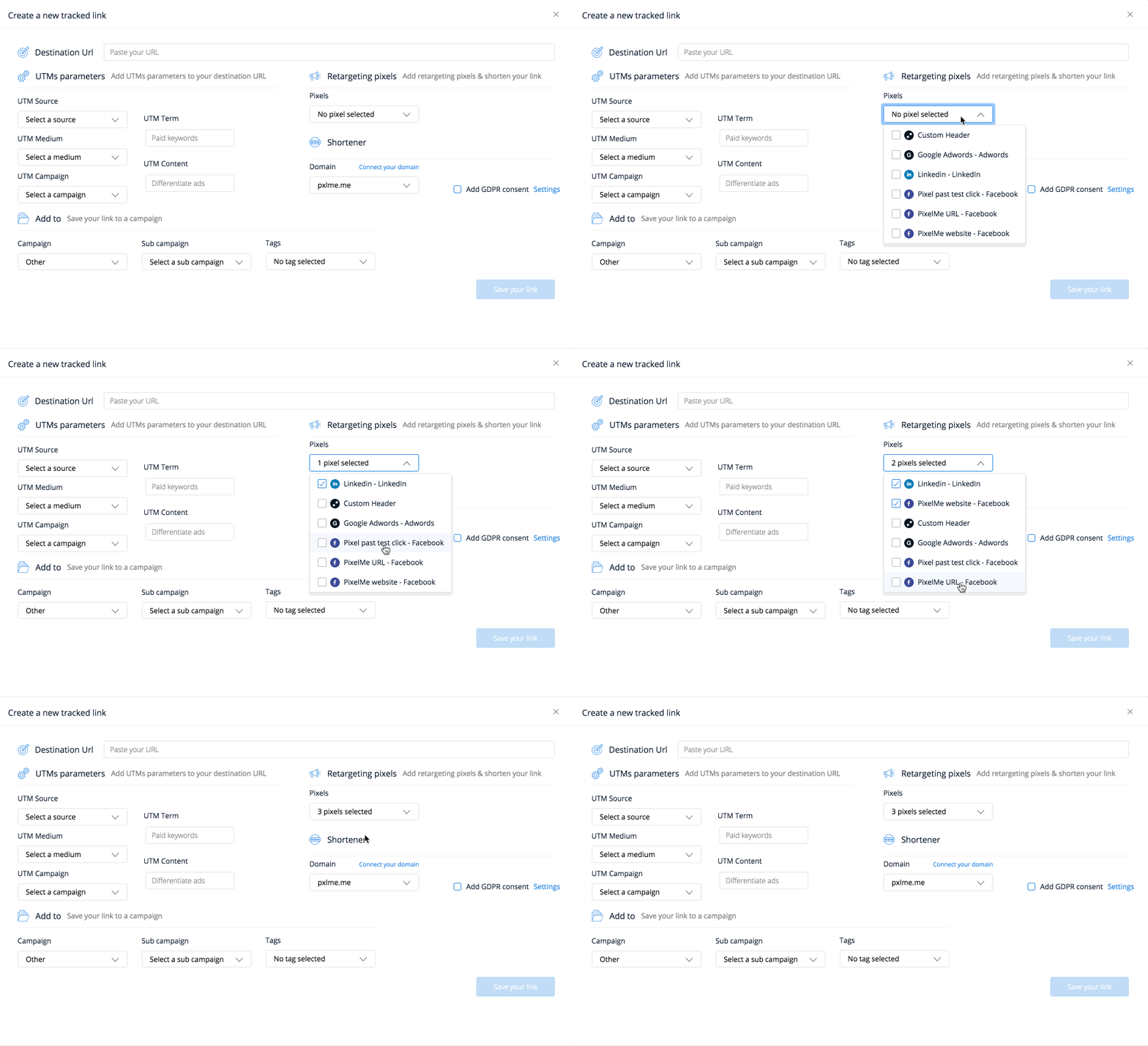
Can I add multiple pixels in the same link?
Yes, it’s totally possible 😄After adding your different pixels in the Audience Builder ‘Settings’ tab, go back to your dashboard. Before shortening a URL, you can select the different pixels you want to include in your link.
Not a PixelMe user yet? 👉 Try PixelMe for free, the URL shortener for savvy marketers! Turn every link you share into perfectly targeted ads. 🚀
Adding a custom root domain to PixelMe
While we generally suggest users create a subdomain instead of a root domain, it is of course possible to add a root domain as well.
The setup for the root domain is similar to a subdomain, with two key differences.
Firstly, you will need to create the domain you’d like to use. Please be sure the domain isn’t being used for any other purpose! All traffic will be redirected to PixelMe, so if you are using the domain for anything other than our service, you will run into issues! Once it’s been created:
- You will need to set up an A record, not a CNAME record on your server for the domain.
- You will need to point the domain to our IP, which is 51.15.139.10
Please be sure the domain isn’t being used for any other purpose! All traffic will be redirected to PixelMe, so if you are using the domain for anything other than our service, you will run into issues!
When the record has been made, give it a few hours/days to propagate. When it’s fully propagated, you can add the domain to your account under ‘Audience Builder’ -> ‘Settings’ -> ‘Custom Domain’. 🚀
Not a PixelMe user yet? 👉Try PixelMe for free, the URL shortener for savvy marketers! Turn every link you share into perfectly targeted ads. 🚀
What happens if I reach my click limit for the month?
Before that happens, you will receive a warning at 80% letting you know you’re getting close to the limit. Then, if you do reach 100%, your links will still work – you just won’t be able to see new data from your links, and we will no longer fire your retargeting pixels.
We never upgrade anyone without their permission! So if you want to move up to the next plan, you’ll have to do it yourself 😄 Luckily, you can easily do so from the ‘Billing’ tab in your dashboard.
Not a PixelMe user yet? 👉Try PixelMe for free, the URL shortener for savvy marketers! Turn every link you share into perfectly targeted ads. 🚀
What happens at the end of my free trial?
At the end of your free trial, your account will be automatically downgraded to our Free Plan. You won’t be able to shorten any new links, but any existing links will still work (forever).
Or, if you’d like to continue using PixelMe, head over to the billing tab within your account to upgrade to one of our paid plans.
Not a PixelMe user yet? 👉Try PixelMe for free, the URL shortener for savvy marketers! Turn every link you share into perfectly targeted ads. 🚀
What is a custom branded short link?
On all PixelMe plans, you’ll be able to use the pxlme.me domain. As much as we love this URL ourselves, we also offer the option to use your own custom short links! 🙌
We let you add unlimited subdomains (such as social.yoursite.com), shortened domains (like yoursi.te) or even dedicated root domains you’d like to use specifically for your links (such as yournewsite.com)
Custom short links can be purchased from sites like GoDaddy for less than $20/year. Branding is all about touch points, so why not use the link itself as an opportunity to reinforce your brand name?
Want to know more about setting up a custom domain? Visit our collection of articles about the topic here 😄
Not a PixelMe user yet? 👉 Try PixelMe for free, the URL shortener for savvy marketers! Turn every link you share into perfect targeted ads. 🚀
What is the right plan for me?
The best plan for you will comes down to one thing – how many clicks you’ll be getting on your links.
We offer a free 7 day trial to test out all our premium features. Why not take one for a spin to get a better idea of what your usage might be? And we’ll be on hand to answer any questions you might have! Feel free to drop us a message here.
Not a PixelMe user yet? 👉Try PixelMe for free, the URL shortener for savvy marketers! Turn every link you share into perfectly targeted ads. 🚀
What does PixelMe do and why is it important?
PixelMe is a attribution tool with retargeting and link management features. With our Smart Attribution, we enable you to track important conversion events, such as a purchase, signup, or subscription, and connect it back to the link the user originally clicked. This way, we can accurate attribute the conversion to the correct ad, social post, email campaign, or wherever else you shared the link.
The Audience Builder portion of our dashboard is a URL shortener, which embeds a retargeting pixel into each link that you shorten. You can then retarget to people who clicked on your link using Facebook, Twitter, Google, and LinkedIn Ads.
There are several reasons why this can be beneficial (and you can read more about that on our blog), but the key reason is that you’re able to retarget people, even if you’re sharing external content!
Not a PixelMe user yet? 👉 Try PixelMe for free, the attribution tool for savvy marketers! 🚀
What is Smart Attribution?
Smart Attribution is PixelMe’s solution to the issue of attributing conversion across multiple channels.
With Smart Attribution, all your ads and organic campaigns are added into one dashboard. No matter on which platform your ad is running, you can keep track of it in your Smart Attribution dashboard.
We manage this by starting attribution from the source – links. We track users based on the links they click, whether they be in your ad, on social media, in emails, or anywhere else you’d like to place them. We track UTMs (which you can add yourself) so you can easily segment the your attribution data.
We use the PixelMe tracking code (which you can install on all your web pages) to track their progress across your website. With our event tracking, you can place a conversion pixel on any event you deem important to your business – for example, ‘sign up’, ‘upsell’, ‘purchase’, etc.
When the user undertakes any of these action, we can trace it back to the link they originally came from – thereby attributing them correctly, regardless of the platform the ad/post/email/etc. was original on.
In order to use Smart Attribution, you’ll need your own website, on which you can add our tracking script. You will also need to use UTMs on your links.
You can find out more about:
Setting up our tracking
Creating links with UTMs
Setting up a filter
What is retargeting?
Retargeting, or remarketing, is a way to follow your audience across the web and target them with appropriate ads and messaging. By placing a pixel (a small piece of code) on your website, you’re able to track visitors and continue marketing to them in other places.
We especially love this article, from Moz, which describes retargeting in greater detail.
‘It’s a form of marketing in which you target users who have previously visited your website with banners ads on display networks across the web.’
Not yet a PixelMe user? 👉 Try PixelMe for free, the URL shortener for advertisers! Turn every link you share into perfect targeted ads. 🚀
What is a retargeting Pixel?
A retargeting pixel is a small piece of code that you place on your website, which allows you to track visitors and continue marketing to them in other places. Each time a visitor comes to your site, the pixel code drops a cookie to your visitors’ browser, and in turn, you can use this cookie to retarget this audience later on with appropriate ads and messaging. 🙌
Not a PixelMe user yet? 👉 Try PixelMe for free, the URL shortener for savvy marketers! Turn every link you share into perfectly targeted ads. 🚀
What is UTM tracking?
UTM (Urchin Tracking Module – the important part is tracking 😉) parameters (aka UTM codes) are simply tags you can add at the end of a URL to track how effective a certain marketing campaign is.
When a person clicks on a link tagged with UTM parameters, those parameters get sent back to your analytics platform (in this case, PixelMe!)
This means you get relevant data that helps you understand which campaigns and channels attract the most traffic, and where to optimize your marketing strategy. It all begins with having solid tracking in place.
Not a PixelMe user yet? 👉Try PixelMe for free, the URL shortener for savvy marketers! Turn every link you share into perfectly targeted ads. 🚀
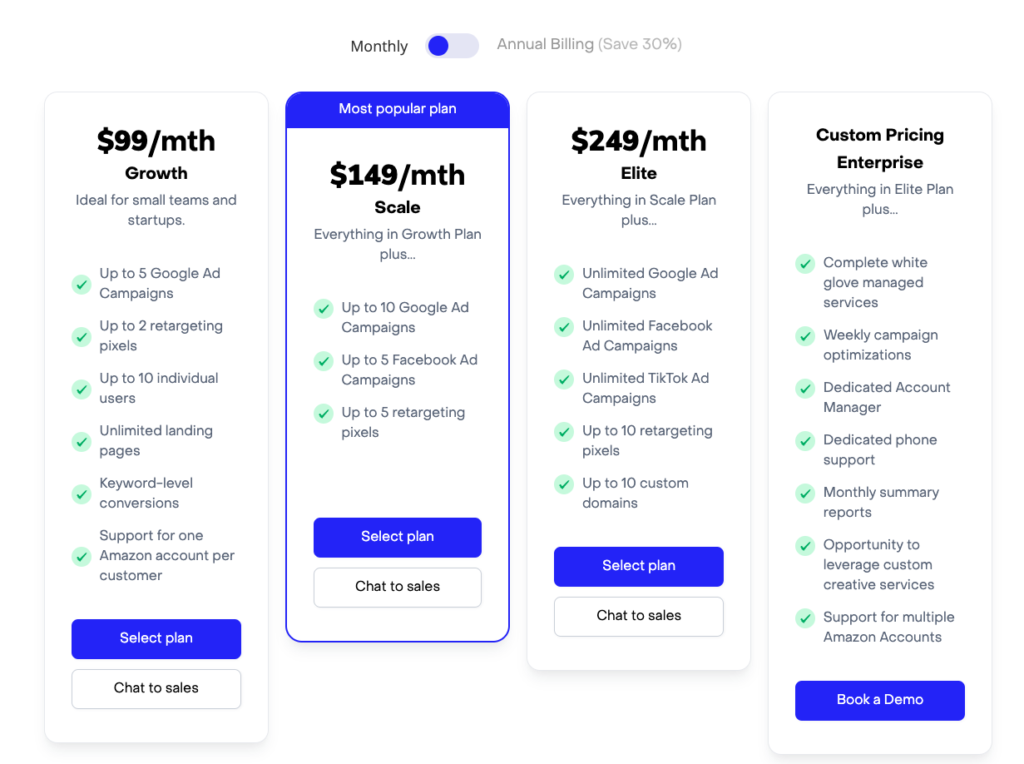
What are the different pricing options?
You can see all our pricing options here!
Not a PixelMe user yet? 👉Try PixelMe for free, the URL shortener for savvy marketers! Turn every link you share into perfectly targeted ads. 🚀
We removed Amazon Attribution on the Link Manager. (URL shortener)
Starting June 1st, 2022, we removed the option to add the Amazon Attribution tags in the Link Manager on PixelMe.
But, no worries! You will still be able to create shortened links with Amazon Attribution in the Ad Launcher using custom campaigns.
You are able to create custom campaigns for influencers, social media campaigns, or whatever you want!
Going forward you will be able to see all of your Amazon Attribution data in the Ad Launcher.
This means that you’ll see data from ads as well as your custom campaigns all in one place.
What is your refund policy?
If you cancel your monthly subscription and would like a refund, we can refund the latest payment if:
- The refund is requested within 15 days of payment AND
- If there has been no activity on your account in that time.
Yearly payments can be refunded if:
- The refund is requested within 30 days of payment AND
- If there has been no activity on your account in that time.
Add a custom (sub) domain on PixelMe
To add your own custom subdomain on PixelMe, please follow these steps:
- On your domain provider, create a subdomain for PixelMe, for example, social.mycompany.com
- Point your subdomain to our servers by creating a CNAME record: point the desired subdomain to cname.pxlme.me
- Wait a few hours during the DNS propagation.
- When your subdomain social.mycompany.com redirects to getpixelme.me, that means it works!
- Add your domain on PixelMe by going to your Link Manager settings, Custom Domains and Add a custom domain.
If you are looking to add a main Domain, please read this article.
Not a PixelMe user yet? 👉Try PixelMe for free, the URL shortener for savvy marketers! Turn every link you share into perfectly targeted ads. 🚀
Inviting team members to PixelMe
You can invite team members to your PixelMe account, allowing them to have full access and the ability to shorten links with your pixels.
To do so, select the cog symbol in the left-hand navigation bar, then select the ‘Team members’ tab. Here, you can add your team members.
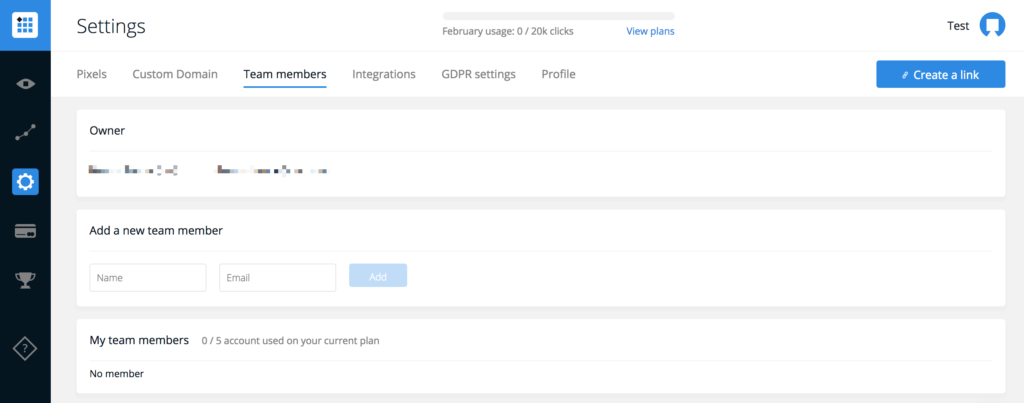
At the moment, any team members invited will have ‘Admin’ access. We may consider other team member permissions in the future.
Not a PixelMe user yet? 👉 Try PixelMe for free, the URL shortener for savvy marketers! Turn every link you share into perfect targeted ads. 🚀
Importing your branded links into PixelMe
If you’re looking to upgrade from a different link management system to PixelMe, we’re happy to hear that! Congratulations on making a great choice. 😉Here are the steps you can follow.
- First of all, we recommend you let us know if you’re planning to move your links. Just press the chat button at the bottom of your screen right now to let us know!
- Export all your links into a CSV file with the columns ‘Shortened URL’ and ‘Destination URL’.
- Point the CNAME of your subdomain to the PixelMe IP, which is 51.15.139.10 (if you have a domain, not a subdomain, point the A record to our domain instead)
- Let us know when it’s done, and we’ll take it from there! 🚀
Please note that we only import links for paying customers 😊
Not a PixelMe user yet? 👉Try PixelMe for free, the URL shortener for savvy marketers! Turn every link you share into perfectly targeted ads. 🚀
Where can I find my receipts/invoices?
You can find your latest invoices in the ‘Billing’ tab of your PixelMe dashboard 😄
Not a PixelMe user yet? 👉Try PixelMe for free, the URL shortener for savvy marketers! Turn every link you share into perfectly targeted ads. 🚀
IMPORTANT – Explaining Attributed Data vs. Live Data
I found a spam link with a pxlme.me domain – what do I do?
Where can I find some use cases for PixelMe?
The best place to find inspiration for using PixelMe in your business is through our blog! 😊
Not a PixelMe user yet? 👉 Try PixelMe for free, the URL shortener for savvy marketers! Turn every link you share into perfect targeted ads. 🚀
Where can I suggest a new integration?
Thanks so much for wanting to help us make PixelMe even better! ✨ We’d definitely love to hear your ideas. Please drop us a message here.
Thanks again, we really appreciate your time!
PS: You can check our public roadmap here: https://trello.com/b/bnAC4rtd/pixelme-roadmap
Not a PixelMe user yet? 👉 Try PixelMe for free, the URL shortener for savvy marketers! Turn every link you share into perfectly targeted ads. 🚀
I can’t find my facebook page when creating an ad
Issue – I can’t find my facebook page when creating an ad even though my facebook account has been connected to pixelme.
Solution
We simply need to re-connect to your facebook account to the correct facebook page(s).
To do that,
1- Open an incognito browser. Log into Facebook
2- Remove PixelMe Business integration from facebook
https://www.facebook.com/settings?tab=business_tools&ref=settings
3- Go back to PixelMe in a regular browser and go to Ads Launcher > Settings
4- Choose the facebook account and click on Connect Facebook Ads

5- Select the pages that you want to connect
6- Click Next, then Done
7- Pixelme will now re-connect your facebook pages
Which events can I track?
You can track a conversion on any event on your website, as long as you have access to the source code. You will have to add a tracking pixel to the button or link where the conversion takes place (for example, a ‘submit’, ‘sign up’, or ‘purchase’ button) OR to a page that’s related to the conversion (for example, the purchase confirmation page after a purchase has been made)
Read more about how to set up your conversion tracking here.
Not a PixelMe user yet? 👉Try PixelMe for free, the URL shortener for savvy marketers! Turn every link you share into perfectly targeted ads. 🚀
Which UTMs parameters can I track?
You can track five different parameters in our dashboard:
- Source: channel or platform where the traffic starts from.
‣ utm_source=facebook (or replace facebook with instagram, google, newsletter, etc.)
- Campaign: a name to identify your overall campaign or promotion.
‣ utm_campaign=easterpromo
- Medium: type of link used, such as cost per click (CPC), social, display, email, organic.
‣ utm_medium=cpc
- Content: what was clicked to refer the user to the URL, often used for A/B testing. E.g., if you were a testing a Mother’s Day landing page with a green call-to-action button vs. a blue one.
‣ utm_content=mothersday_blue_cta ‣ utm_content=mothersday_green_cta
- Term: search keywords you’re targeting for paid search campaigns. E.g., if you’re running Google AdWords or Bing Ads for your Amazon store that sells sandals.
‣ utm_term=leather-sandals
What’s nice is you can include any or all the parameters with PixelMe’s UTM builder, in any order, for every link and they’ll never change anything on the destination page. They purely exist to help you with campaign measurement.
Not a PixelMe user yet? 👉 Try PixelMe for free, the URL shortener for savvy marketers! Turn every link you share into perfect targeted ads. 🚀
Why am I seeing less Purchases and Add to Carts on my keywords than my campaign?
Problem
I am seeing less Purchases or Add to Carts on my Keywords page than what I see on my campaign?
Solution
See this loom video for an explanation
https://www.loom.com/share/f1cd935b91ea49baaa7d763414614025
The campaign level metrics that you see are the true totals of your campaign.
For keywords, Amazon does not report full keyword data until the keyword clicks surpass 10 clicks. They do this to protect shopper privacy.
See amazon documentation, scroll down to the the bottom “NOTE” section
Here’s the note from Amazon:
“To protect shopper privacy, Amazon Attribution will mask data for any reporting row representing a tag or group of tags with < 10 clicks over its lifetime. For example, reporting aggregated at the ad group level will show all data for ad groups with 10+ clicks, even if some of the tags in the ad group have < 10 clicks. Until the click threshold has been surpassed, masked rows will show metric values as zero. Campaigns with very small budgets or shown to a very small audience may take some time to surpass this threshold.
To display reporting at campaign or ad group level, you should request performance reports at these specific aggregation levels, rather than aggregating the data yourself, to ensure your reporting includes all available data and matches the Amazon Ads console.”
I hope this information is helpful!
Why does my number of clicks appear differently in PixelMe than in my Ads platform?
It is normal to see a different number of clicks in PixelMe than in your Ads platform. PixelMe counts the number of clicks, while Ad platforms such as Facebook, count the number of people they identified on their platform.
There is also a slight delay sometimes, since you’re seeing clicks in PixelMe in real time, whereas some ad platforms have a less quick updating time. If you’re not seeing the amount of clicks you think you should, but your pixel is set up correctly, just give it some more time. 😄
Note: Links that are shared on Facebook can potentially be targeted by bots, which will register clicks on PixelMe but not on your Facebook Events Manager. If your PixelMe/Facebook click ratio is very high, this could be one of the reasons why.
Not a PixelMe user yet? 👉 Try PixelMe for free, the URL shortener for savvy marketers! Turn every link you share into perfectly targeted ads. 🚀
Why is Facebook marking my link as spam?
Unfortunately, if enough people mark a post as spam or block a post from their News Feed, and that post contains a link like the one you’ve sent, Facebook will block third party applications from sending posts containing that link or anything similar.
For more on Facebook’s reasoning, please see this blog post: https://www.facebook.com/help/116393198446749
Facebook released new guidelines for sharing content on their platform. Please make sure you’re following them https://www.facebook.com/communitystandards/
Not a PixelMe user yet? 👉 Try PixelMe for free, the URL shortener for savvy marketers! Turn every link you share into perfect targeted ads. 🚀
Add a custom (main) domain on PixelMe
To add your own root custom domain (not a subdomain) on PixelMe, please follow these steps:
- On your domain provider, select your domain and go on the DNS part.
- Point your domain to our servers by creating (or editing) a A Record pointing to our IP 51.15.139.10
- Wait a few hours during the DNS propagation.
- When your domain redirects to getpixelme.com, that means it works!
- Add your domain on PixelMe by going to your Link Manager settings, Custom Domains and Add a custom domain.
If you are looking to add a Sub Domain, please read this article.
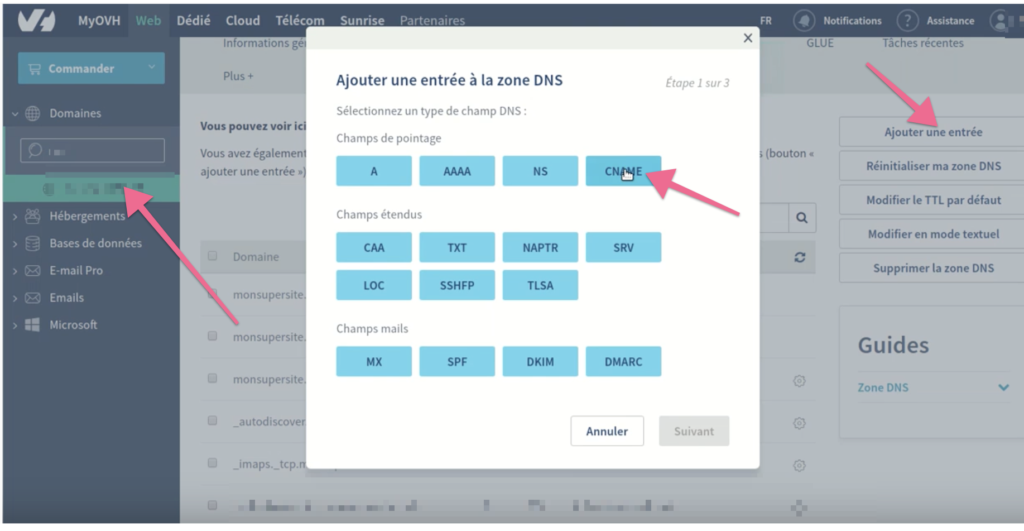
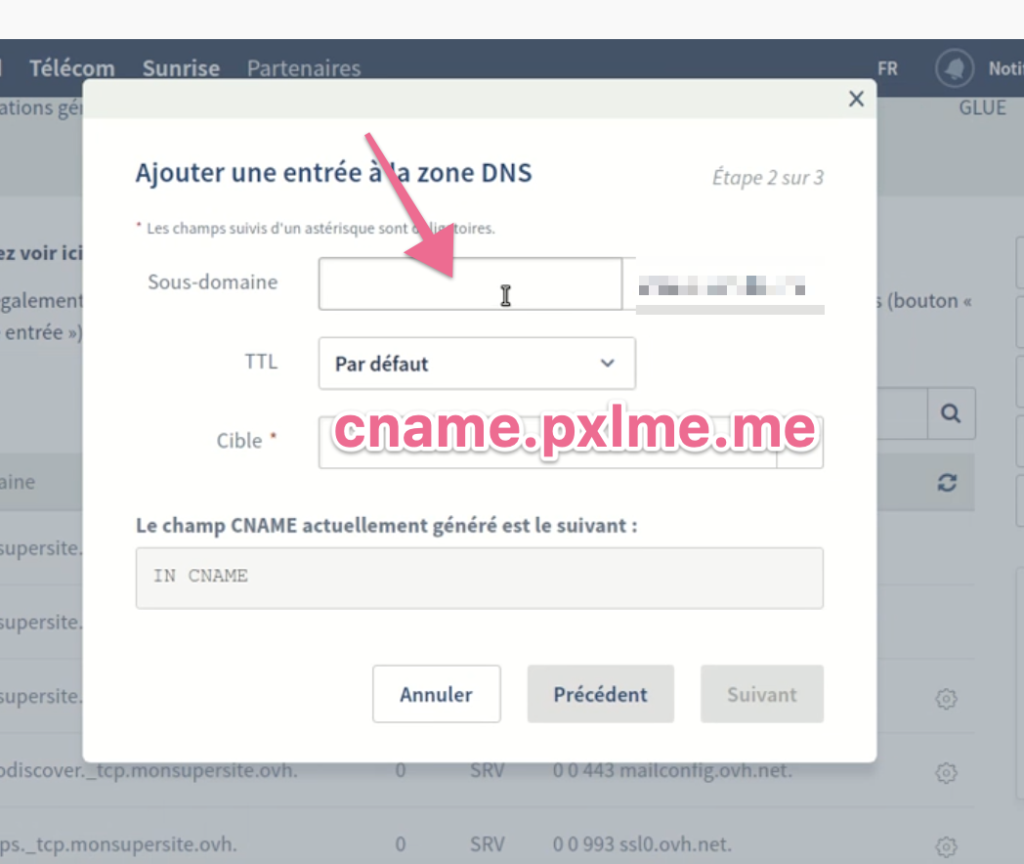
Add a CNAME record on OVH
- Log in to your account.
- Select your domain
- Click on Ajouter une entrée
- Choose CNAME
- Enter your sub domain name
- Fill the cible field with cname.pxlme.me
- That’s all folks 😊
Not a PixelMe user yet? 👉 Try PixelMe for free, the URL shortener for savvy marketers! Turn every link you share into perfect targeted ads. 🚀
Add a CNAME record on Namecheap
On your Namecheap account, create a subdomain for PixelMe, i.e. social.mycompany.com
When you subdomain is created:
- Sign into your Namecheap account.
- Select Domain List from the left side menu.
- Click the Manage button next to your domain.
- Navigate to the Advanced DNS tab.
- Click the Add New Record button in the Host Records section.
- Select CNAME Record from the drop-down menu.
Follow this setup:
- Type: CNAME Record
- Host: your subdomain, for example for social.mycompany.com your subdomain is social
- Value: cname.pxlme.me
- TTL: 30 min
Not a PixelMe user yet? 👉Try PixelMe for free, the URL shortener for savvy marketers! Turn every link you share into perfectly targeted ads. 🚀
How to verify your domain on Facebook and use it on PixelMe
When you add your Facebook pixel ID into a new domain, you should verify this domain on Facebook.
You are required to use a custom domain on PixelMe if you want to use a Facebook pixel. Facebook doesn’t allow anymore to use of the same domain in multiple accounts.
Furthermore, you can create a specific subdomain of your current domain (as social.company.com). If you are using a subdomain, and if your domain was already verified by Facebook, you don’t need to do the verification again.
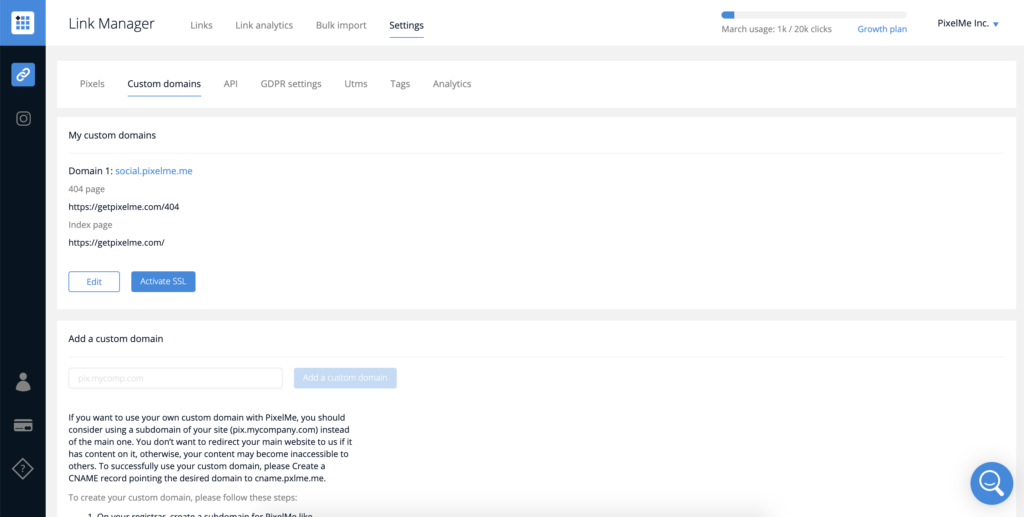
Step 1: Add your domain/subdomain on PixelMe
You should first add your custom domain on PixelMe before verifying on Facebook.
– How to add a custom domain on PixelMe = DOMAIN
– How to add a custom subdomain on PixelMe = SUBDOMAIN
Step 2: Add your domain/subdomain on Facebook
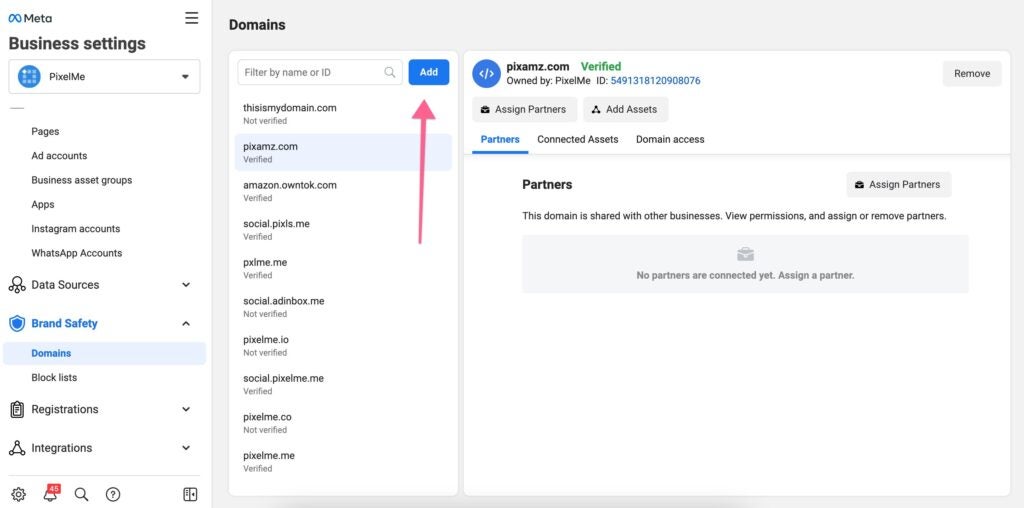
1/ First you can go on the Facebook Business Manager: https://business.facebook.com/settings/owned-domains
2/ Select the business account to declare your domain.
3/ Click on the button “ADD”
4/ Enter your domain or subdomain name:
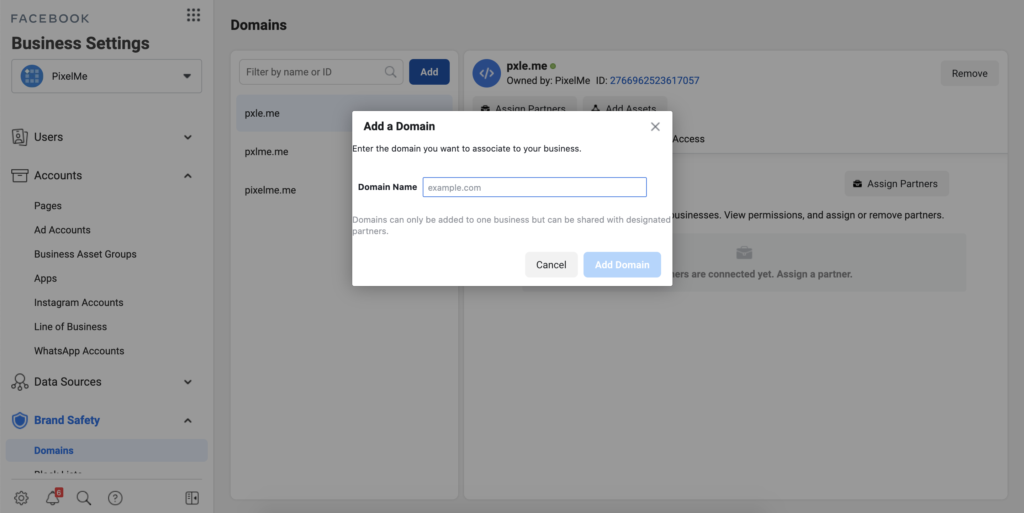
5/ Press “Add Domain”
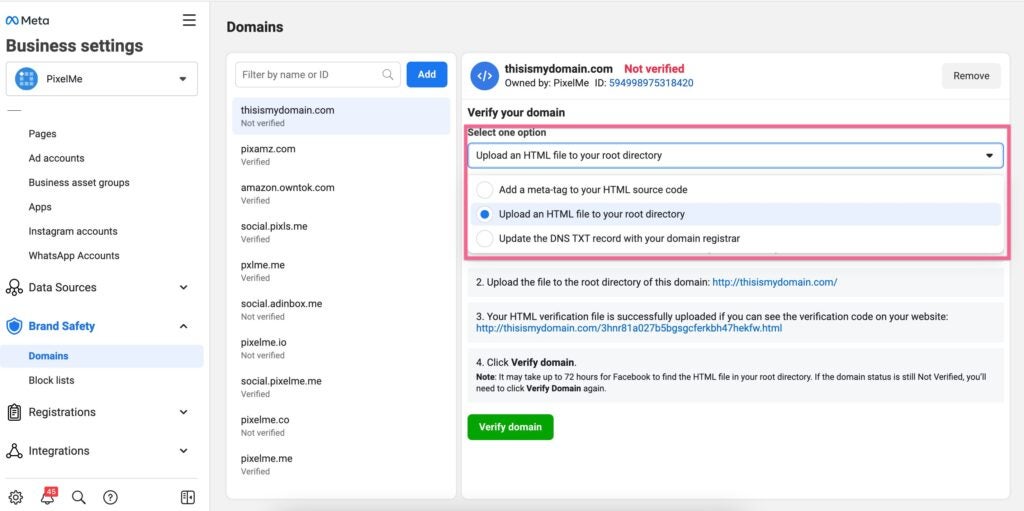
6/ Verify your domain with the second option “Upload an HTML file to your root directory”.
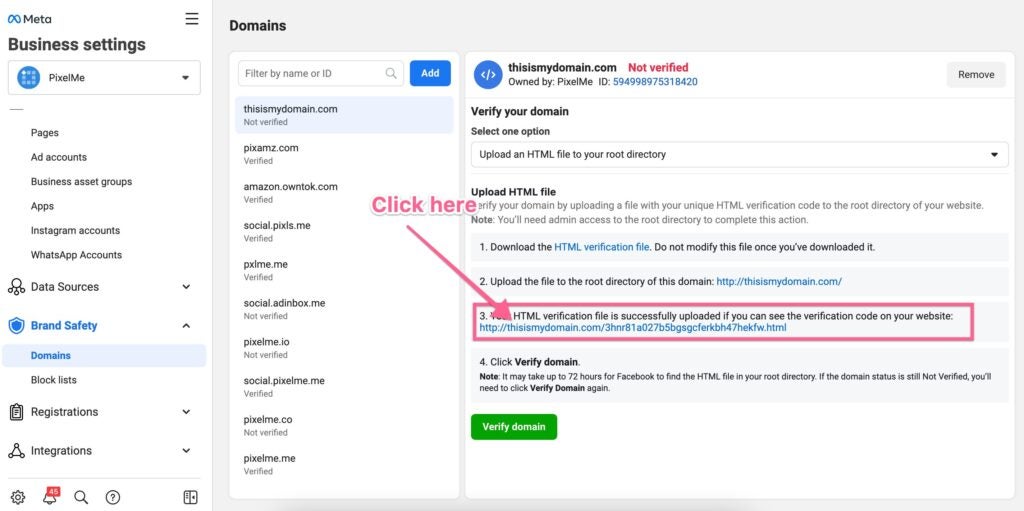
7/ Visite le link provided by Facebook.
8/ Click on “VERIFY” button!
All is good! You did a great job!
Your domain is now verified on Facebook! You can now insert your Facebook pixel into your domain and your pixel will be correctly fired from all PixelMe links.
Add a CNAME record on Google domain
On your Google Domain, create a subdomain for PixelMe, i.e. social.mycompany.com
When your subdomain is created:
- Log in to your account.
- Click on the My Services tab.
- Under Manage My Services, click on Manage Services.
- Go to Domain Overview.
- Click on Domain Administration.
- Select the domain you’re using with G Suite.
- Click the DNS tab, and select DNS Records.
- Click Add New DNS record.
- From the drop-down menu, select CNAME, and click Next.
- Click Finish.
Follow this setup:
- Name/Host/Alias: your subdomain, for example for social.mycompany.com your subdomain is social
- TTL: 3600
- Record Type: CNAME
- Value/Answer/Destination: cname.pxlme.me
Not a PixelMe user yet? 👉 Try PixelMe for free, the URL shortener for savvy marketers! Turn every link you share into perfect targeted ads. 🚀
How to find Competing ASINS
Here are some helpful tips to find the right competitor ASINS:
Focus on ASINs that are similar to yours
- Products that solve the shopper’s need in the same way
- Same type of product
- Similar price and reviews
- ⚠️ Do not blindly choose top-selling ASINs in your category
Example:
You sell body wash for $19.99 and it has 800 reviews
- do not choose ‘body soap bars’. Choose other body washes.
- search for competitors by typing in the main keywords for your product like ‘body wash’ or ‘body wash 2 pack’
- choose body washes above $15 and under $25
- choose body washes above 500 reviews and under 5,000
These tips are loose tips. Every niche can be different on amazon.
🌟 Bonus Tip: If you’re above 250 in your category best seller rank
- Analyze top 100 best sellers
- Compare similar priced products with similar reviews
How to collect your PixelMe invoices automatically
We want PixelMe to be as smooth and simple to use as possible. That’s why we’ve partnered with a great tool that collects all of your receipts, organizes them, and makes them easy to find whenever you or your finance team needs them.
Collect by Spendesk does all of this automatically. So once you get set up, you’ll never have to remember to find invoices again.
Plus it’s totally free, and we think it’s a good way to make using PixelMe even better!
How to get started.
It’s very simple. All you need is a Collect by Spendesk account.
- If you already use Spendesk, just log in with your Spendesk credentials here to create your Collect account. It’s instant. If you don’t already use Spendesk, you can create a Collect by Spendesk account in seconds.
- Find PixelMe in the marketplace of different tools. Hit Add Collector.
- Connect your PixelMe profile (you’ll need your login details):
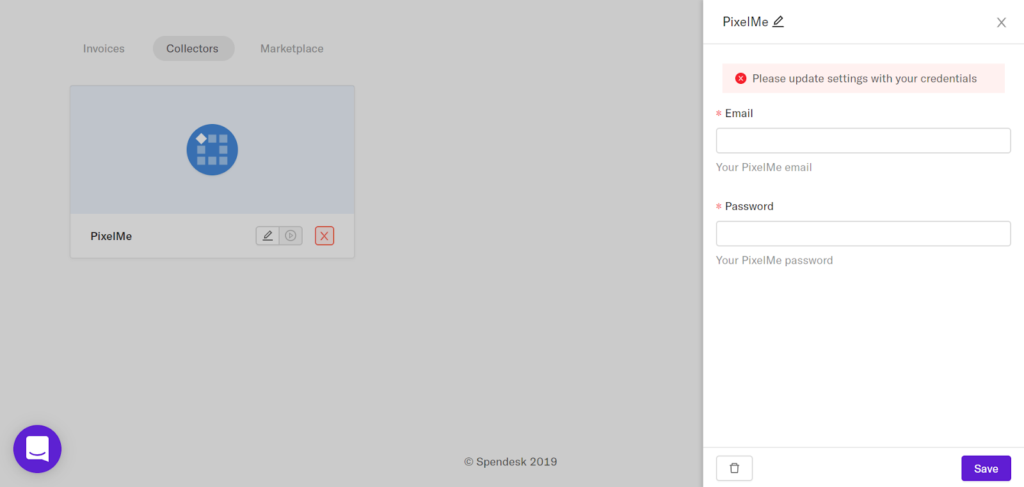
- From the Collectors screen, choose Run collector
- Choose the start date and the frequency with which you want to collect invoices.
- And you’re all set!
What happens next?
Collect by Spendesk will find each new receipt from PixelMe (and any other tools you set up). If you pay monthly, Collect will track down your receipt every month. If you pay annually, Collect will check back in a year’s time.
The tool fetches the receipts and puts them all into one dashboard for you to find when you need them:

It’s basically a “set it and forget it” way to manage receipts from all your tools. And if it’ll make PixelMe more enjoyable for you, then that makes us happy! 😄
Not a PixelMe user yet? 👉Try PixelMe for free, the URL shortener for savvy marketers! Turn every link you share into perfectly targeted ads. 🚀
Add a CNAME record on GoDaddy
On your GoDaddy, create a subdomain for PixelMe, i.e. social.mycompany.com
When your subdomain is created:
- Log in to your My Products page.
- If you aren’t automatically directed there, make sure to select the My Products tab.
- Click Manage All.
- From the top menu, click the DNS tab, and select Manage Zones.
- Enter the domain name you want to use and click Search.
- On the DNS Management page, at the bottom of the Records section, you can add new CNAME records.
Follow this setup:
- Type = CNAME
- Name = your subdomain, for example for social.mycompany.com your subdomain is social
- Point to: cname.pxlme.me
- TTL = 1 hour
Not a PixelMe user yet? 👉Try PixelMe for free, the URL shortener for savvy marketers! Turn every link you share into perfectly targeted ads. 🚀
How do I use the attribution filters?
(Note: you will need to have both pageview and event tracking installed before you can analyze your data. Please do so first by following this guide.)
In your dashboard, you’ll see the following options in your ‘Overview’ tab

These are essential to making sure you’re seeing the data you want to have! We’ll go through each section one by one to explain how they work, and give you some examples to put it all together.
Conversion event
Choosing the conversion event you want to see is the first step in tracking your attribution.
You’ll find all of your events in the drop down when you click on the downwards arrow. Select the event you’d like to see conversion data for!
For example, in my case, I would like to see all the data relate to ‘Subscribe’, an even in which users sign up to pay for my product.

Window
The window you choose will determine how long in the future you’d like to attribute the conversion event you picked related to visits that happened in your date range.
For example, picking a 30 day window means ‘I would like to see all traffic data related to my conversion event which happened in the month leading up to my date range’.

For example, in my settings, I will now see any event which was related to a Subscription which happened in the month after users visited my site. If a user found my product through an ad on Facebook 28 days ago, and converted last week, that will be included. However, if they clicked on a Facebook ad 31 days ago, it won’t be counted towards my conversion path.
Date range
The date range determines the dates for the visitors you’d like to see. However, using the conversion window, the conversion can be attributed after the date range.

For example: a visitor comes to your site on the 2nd of September, and your date range is the first week of September with an attribution range of 30 days. That user converted the 15th of September. In that case, you’ll see 1 visitor and 1 conversion! Even if your date range is only the 2nd to the 9th of September.
How do I upgrade my plan?
You can upgrade from our Starter Plan to our Growth, Pro, or Business Plan, by jumping over to your Billing tab within your PixelMe account. We will automatically prorate any unused time on your current plan and deduct it from your next payment.
Note: We use a service called Stripe to handle payments, which means we do not store any credit card details on our side.
Not a PixelMe user yet? 👉Try PixelMe for free, the URL shortener for savvy marketers! Turn every link you share into perfectly targeted ads. 🚀